
Divi 5 has been reimagined from the ground up, offering unparalleled speed, performance, and ease of use. With a streamlined Visual Builder and a completely overhauled back end, building websites with Divi 5 is faster and more intuitive than ever. Whether you are a seasoned web designer or a beginner, Divi 5 will help you create stunning sites in record time without sacrificing time or creativity.
In this Divi 5 Public Alpha phase, we invite you to explore the new interface. Keep in mind that this version is still under active development. While you might encounter a few bugs, the tips outlined below will help you maximize your efficiency as you test and build with Divi 5.
Learn more about the Divi 5 Public Alpha and how to download it. 👇
10 Tips For Building Websites Faster With Divi 5 (Public Alpha)
With the release of Divi 5 Public Alpha, there are lots of changes and improvements under the hood.
1. Utilize One-Click Editing
In Divi 4, you have to click the settings icon to change sections, rows, and modules. Now, in Divi 5, that’s all gone, thanks to one-click editing. You can click anywhere within the module to edit it, making the design process less frustrating and much faster.
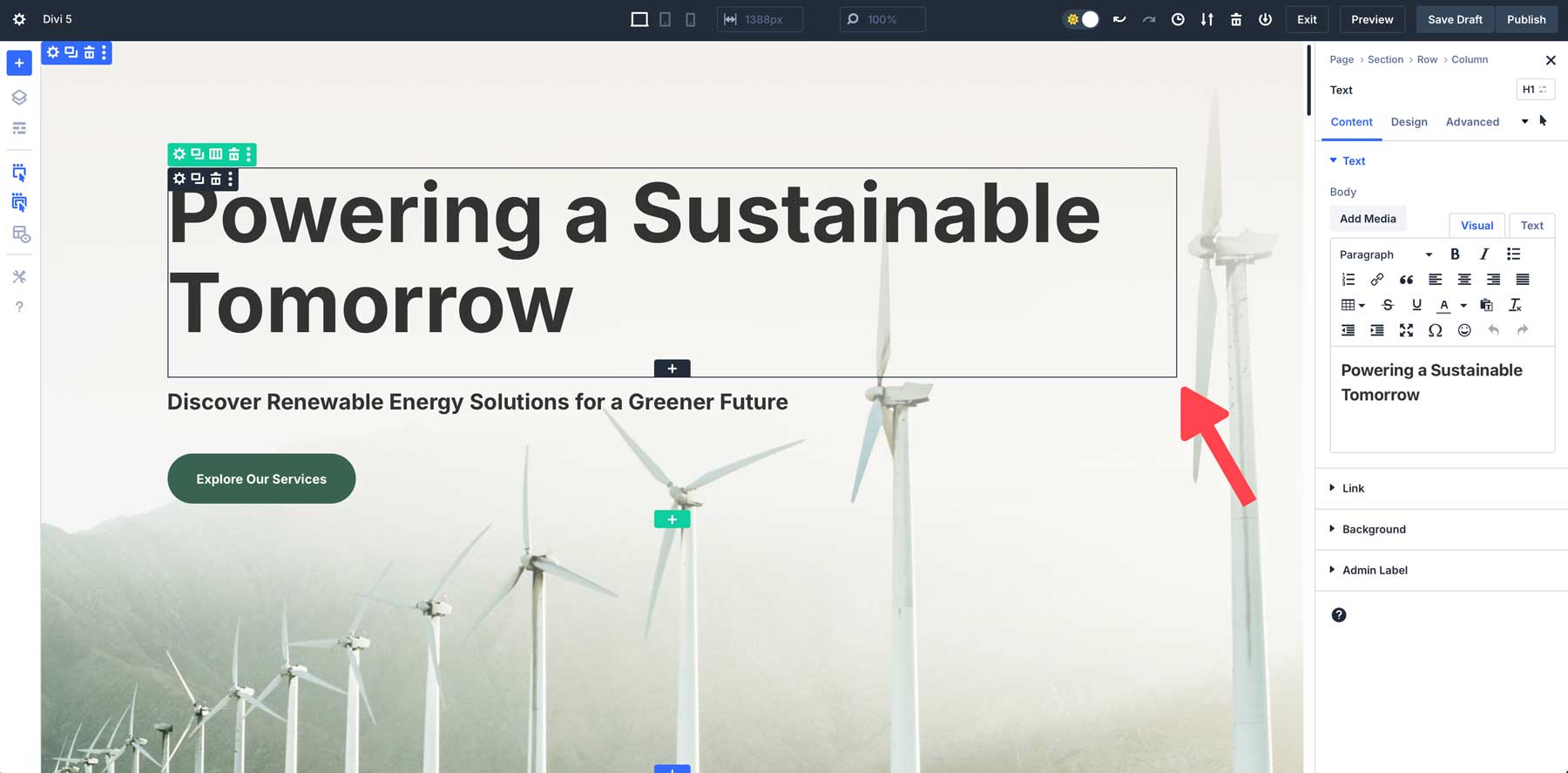
For example, to modify a text module, simply click once anywhere within the module to access its settings instantly.
2. Right-Click For Quick Actions
Divi 5’s right-click context menu adds a powerful new shortcut to your design workflow. By right-clicking on any module, section, or row, you can access a quick action menu of some common actions. Whether you want to copy module styles, duplicate settings, or delete them, this feature lets you perform tasks quickly without opening multiple panels or searching through settings.
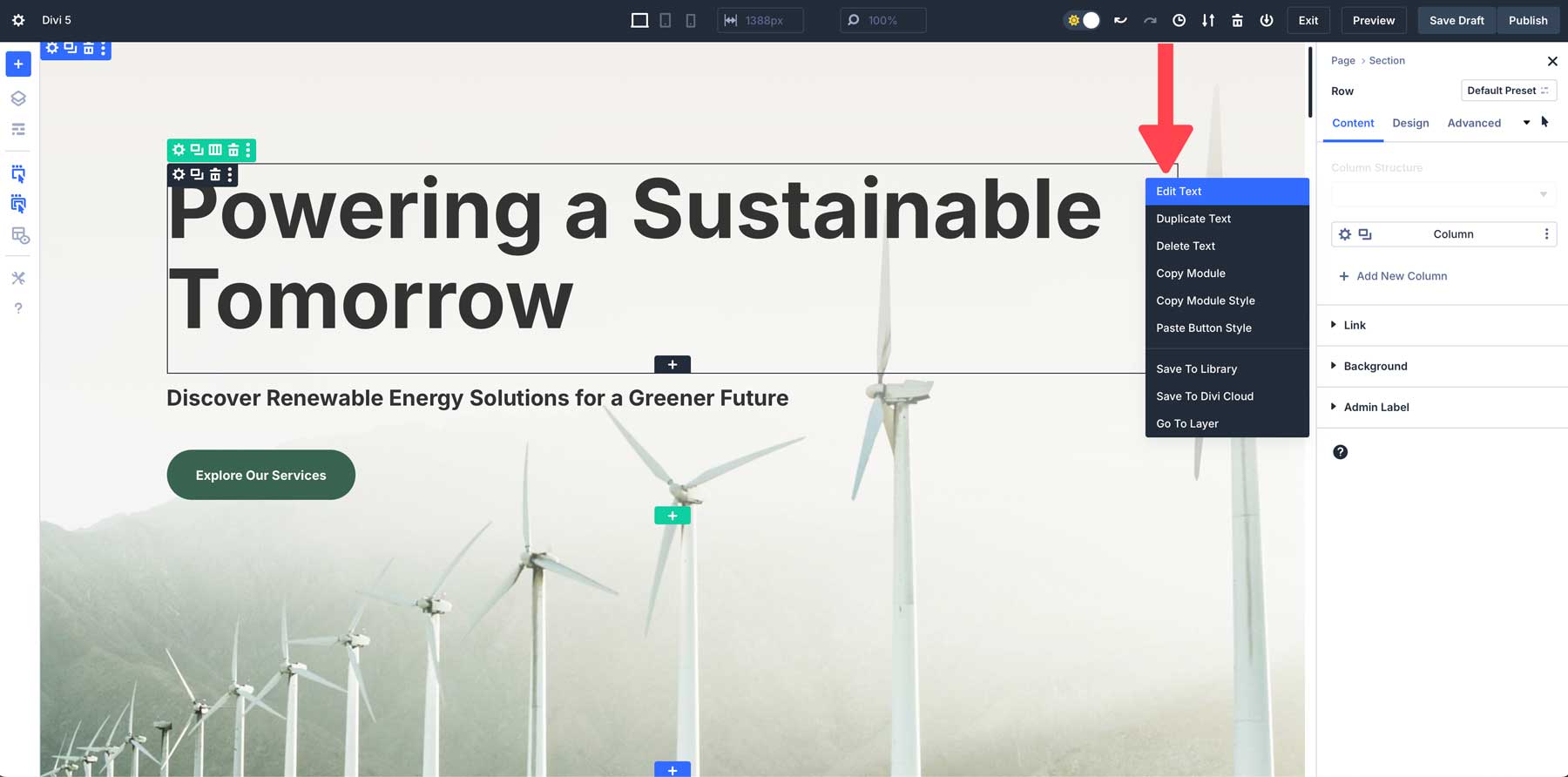
For example, let’s say you’ve designed a button with custom styling. Using the quick actions menu, you can right-click, copy the style of the button, and apply it to every button module you wish to have the same styles on.
3. Dock Multiple Tabbed Panels for Multi-Tasking
Another great new feature of Divi 5 is multi-panel docking, which allows you to open and manage multiple panels at once. In previous versions, you could view more than one panel (layers + module settings, for example), but you could only move them around the canvas so they didn’t block your view. In Divi 5, you can tab panels to keep the canvas clutter-free.
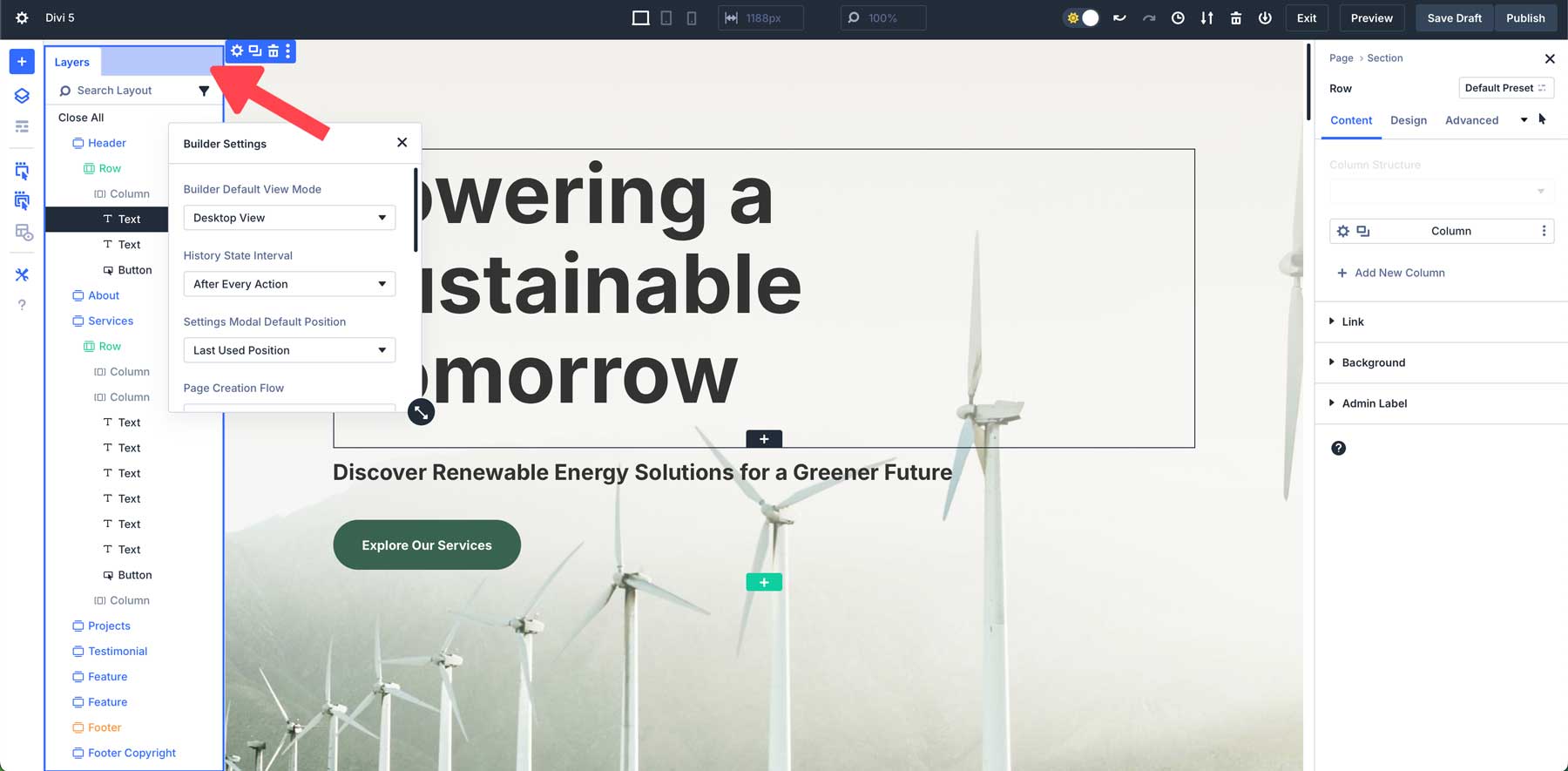
Being able to doc multiple panels side by side makes it easy to adjust different parts of your design simultaneously. Divi 5’s interface lets you move panels around the canvas as you wish, allowing you to create the perfect workspace for your needs. For example, suppose you prefer to have all panels on the left of the canvas. In that case, you can easily detach and move panels to the left, then tab other panels to build a workspace that works for you.
4. Take Advantage Of Canvas Scaling For Responsive Design
Divi 5 introduces a brand new way of designing web pages responsively. With canvas scaling, you can easily scale your workspace and preview how your website will look on various devices without leaving the Visual Builder. Canvas scaling allows you to instantly resize the design canvas, letting you adjust margins, padding, and the overall layout.
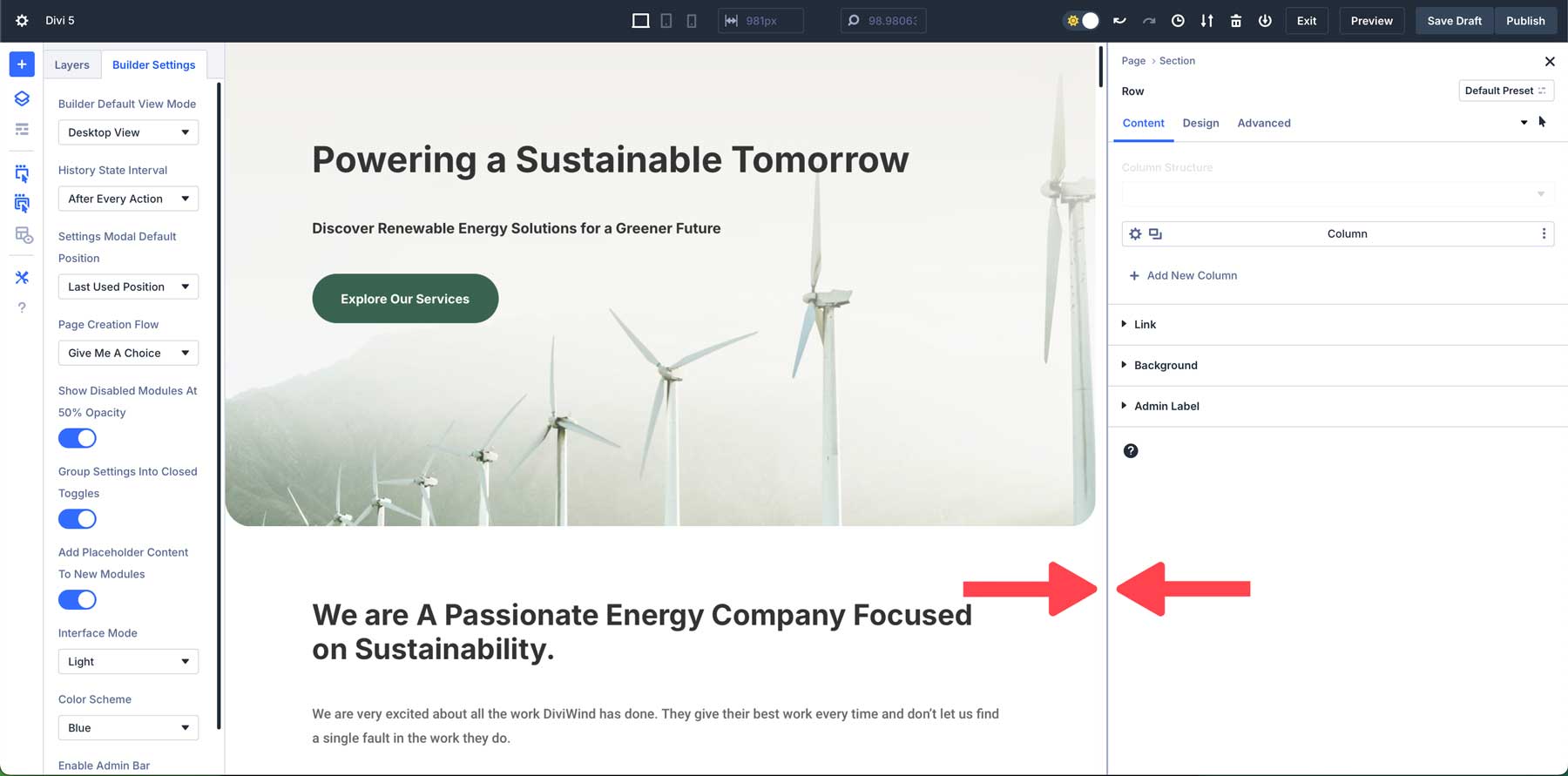
For example, imagine you’re working on a mobile layout and want to adjust the space between sections. With canvas scaling, simply click and drag the edge of the canvas to your chosen size. You can easily fine-tune padding and margins from there to ensure your design looks sharp on smaller screens.
5. Instantly Apply Hover & Sticky Effects
Divi 5 makes adding hover and sticky effects to your designs easier than ever. In previous versions of Divi, users had to navigate to the design tab of a module and dig down into the settings to apply hover or sticky effects. In Divi 5, however, you can apply these effects directly from the settings panel. This new approach makes it easier than ever to create dynamic, engaging designs without interrupting your workflow.
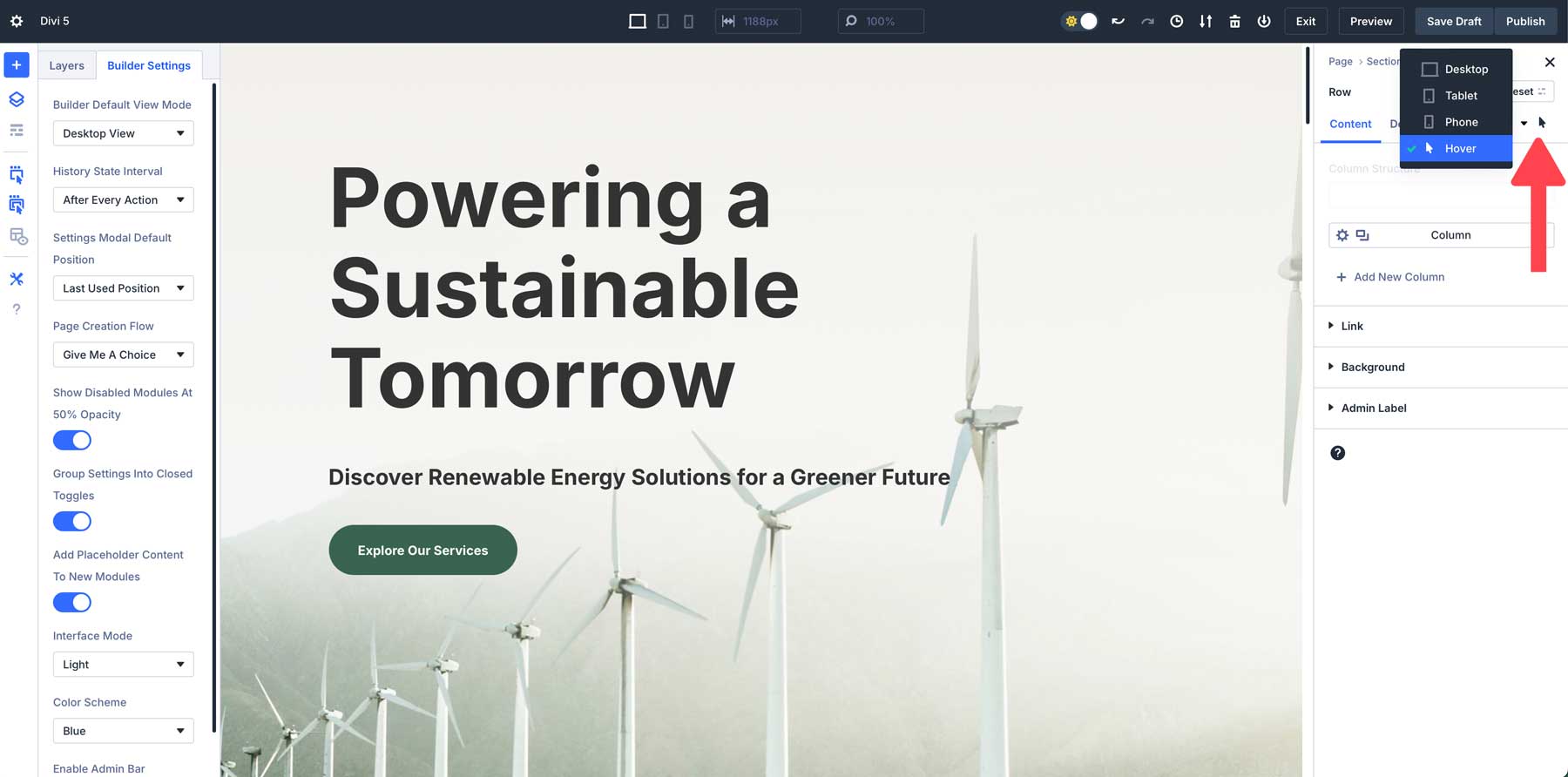
Whether you want to add hover effects to buttons or keep your header fixed at the top of the screen while users scroll, Divi 5 makes the process simple and fast. For example, let’s say you’re designing a CTA and want to add a different color on hover. Simply select the hover state from a dropdown menu within the settings and apply changes in seconds.
6. Use Breadcrumbs For Efficient Navigation
Divi 5 has a new breadcrumb feature that allows users to navigate modules and settings faster and more intuitively. Breadcrumbs act as a visual path that shows you exactly where you are in the settings, allowing you to move between different layouts without getting lost.
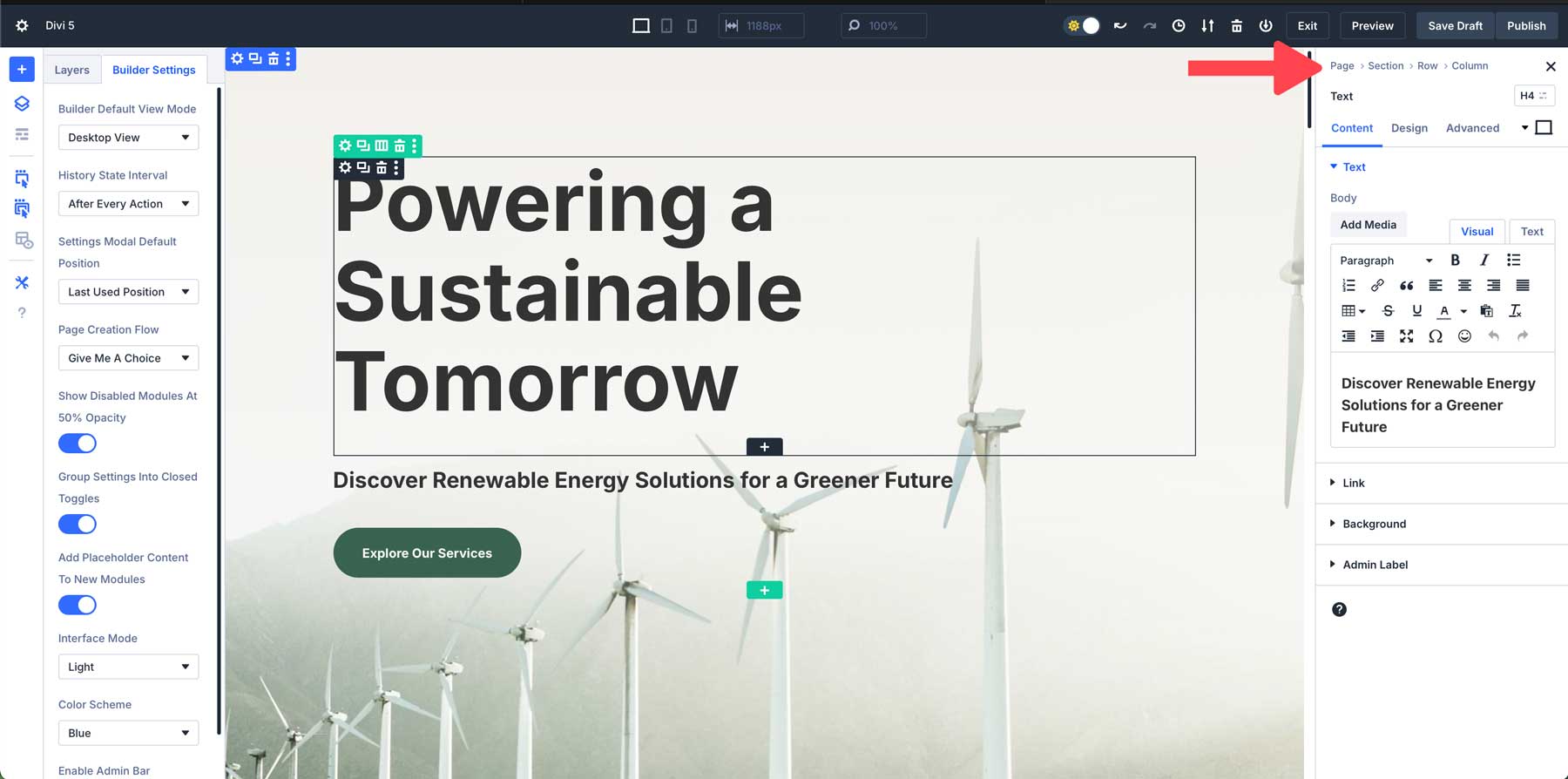
When working within a section, there’s no need to backtrack through menus or lose your place. Each breadcrumb provides a clickable link that lets you easily jump to a previous setting, speeding up the design process.
7. Save Time By Copying & Pasting Styles Between Modules
In Divi 5, you can easily copy and paste module styles between different elements. This allows you to quickly apply the same design settings across multiple modules, ensuring consistency throughout your site while saving time. You can easily copy styles from any module, row, or section within Divi 5 and then paste those styles throughout your design.
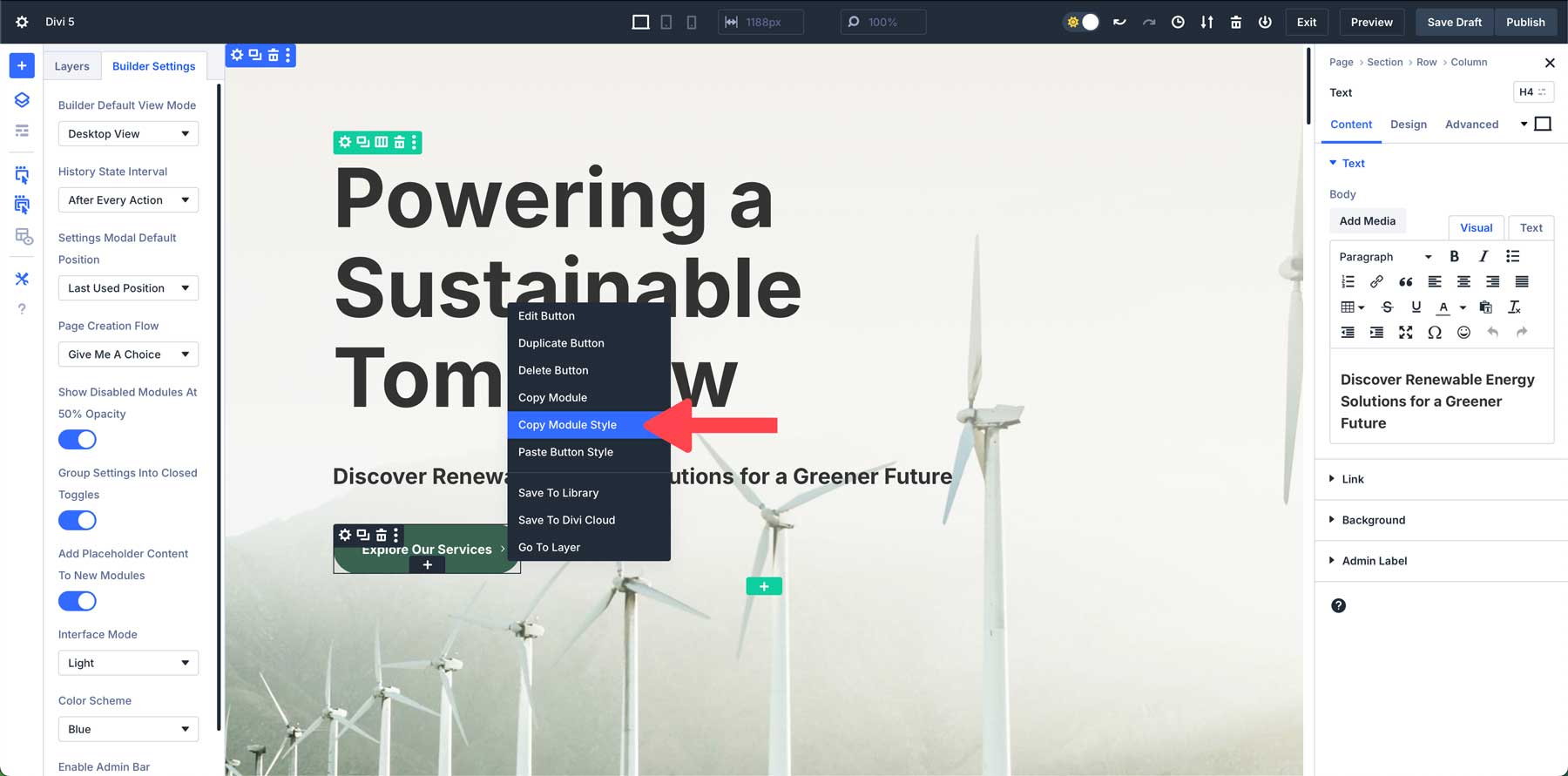
For example, let’s say you have several buttons on a web page that you’d like to have the same style. To apply the style, right-click to activate the Quick Actions Menu, copy the style, and then right-click to paste it on all the web page’s buttons.
8. Utilize Wireframe View For Complex Layouts
Divi 5’s wireframe view strips away a page’s visual design elements, leaving behind a clean, simplified outline of your layout. This view lets you focus solely on the structure without being distracted by colors, fonts, or other visual details. It’s especially useful for complex layouts where you need to quickly adjust the structure.
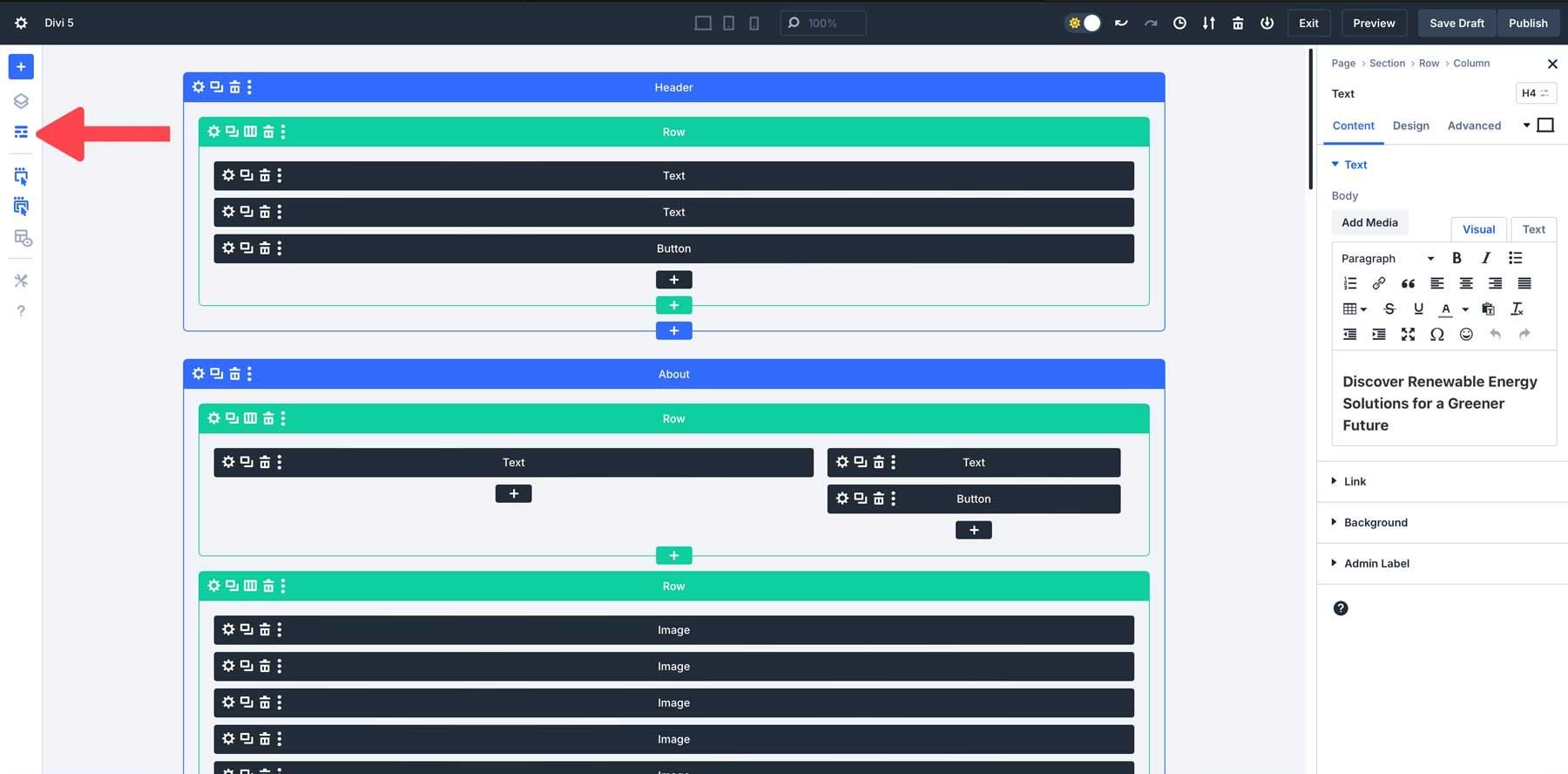
This stripped-down version helps you focus on organizing sections, rows, and modules. When working on a complex layout, the wireframe view makes it easier to manage the structure without worrying about the aesthetic elements.
9. Use The Layers View For Long-Form Content
The Layers View outlines your page’s sections, rows, and modules. This makes it easier to see the entire structure of your layout at a glance. Instead of scrolling through the Visual Builder to find a specific section or module, you can quickly locate it in the Layers panel.
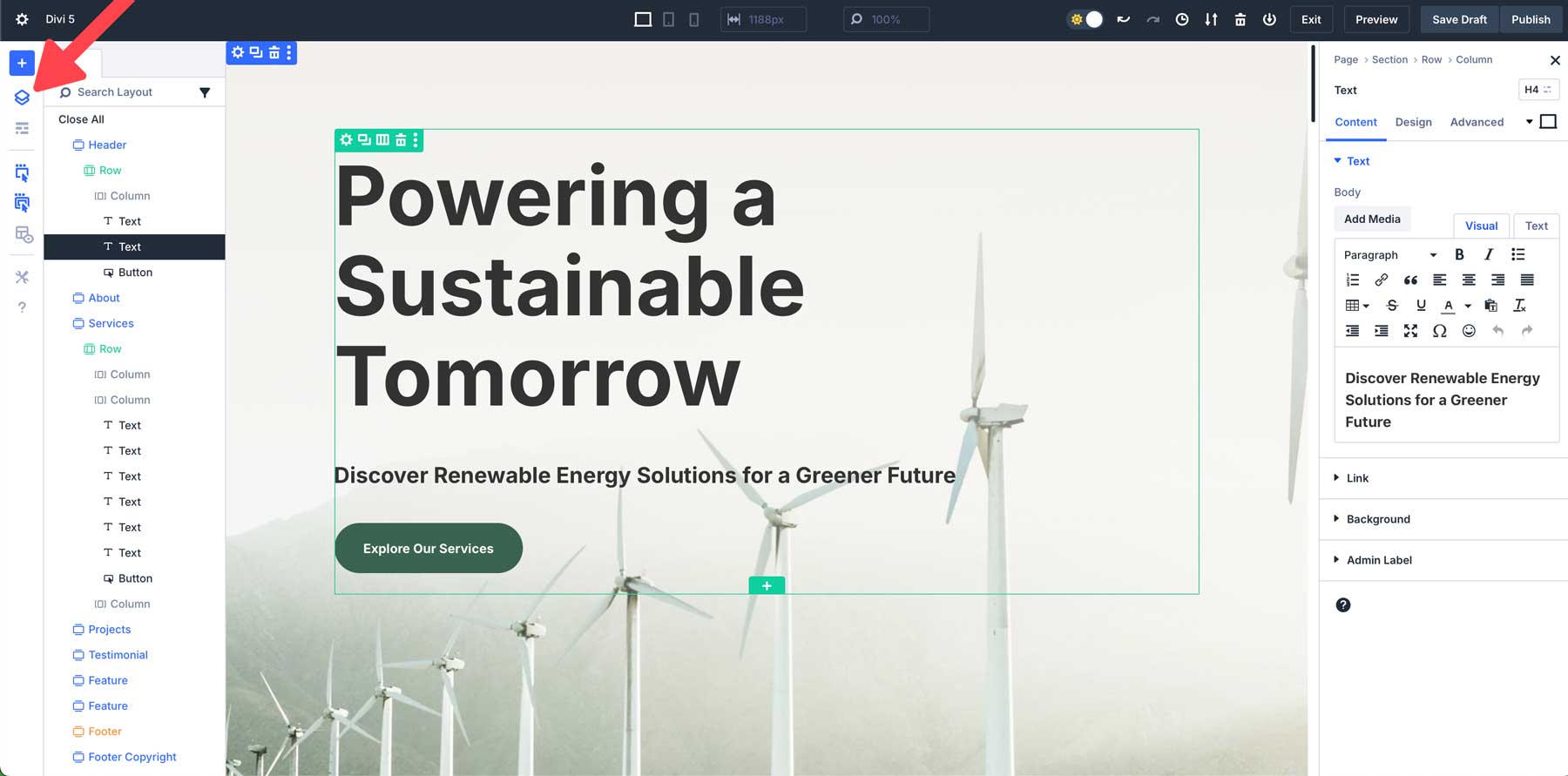
In the Layers View, you can directly select and edit any element within the layout without clicking on it visually within the Builder. This is particularly helpful for elements hidden or nested deep within other modules, such as rows inside multiple layers of sections.
10. Embrace The Learning Curve
Divi 5 introduces an entirely new way to work with the Visual Builder. With all of these powerful updates comes a learning curve. It’s natural to feel a bit overwhelmed initially, especially if you’re comfortable with previous versions of Divi. The good news is that all of the changes we’ve introduced to the Builder are intuitive, so familiarizing yourself with the interface will pay off in a faster, more efficient way to build websites with Divi.
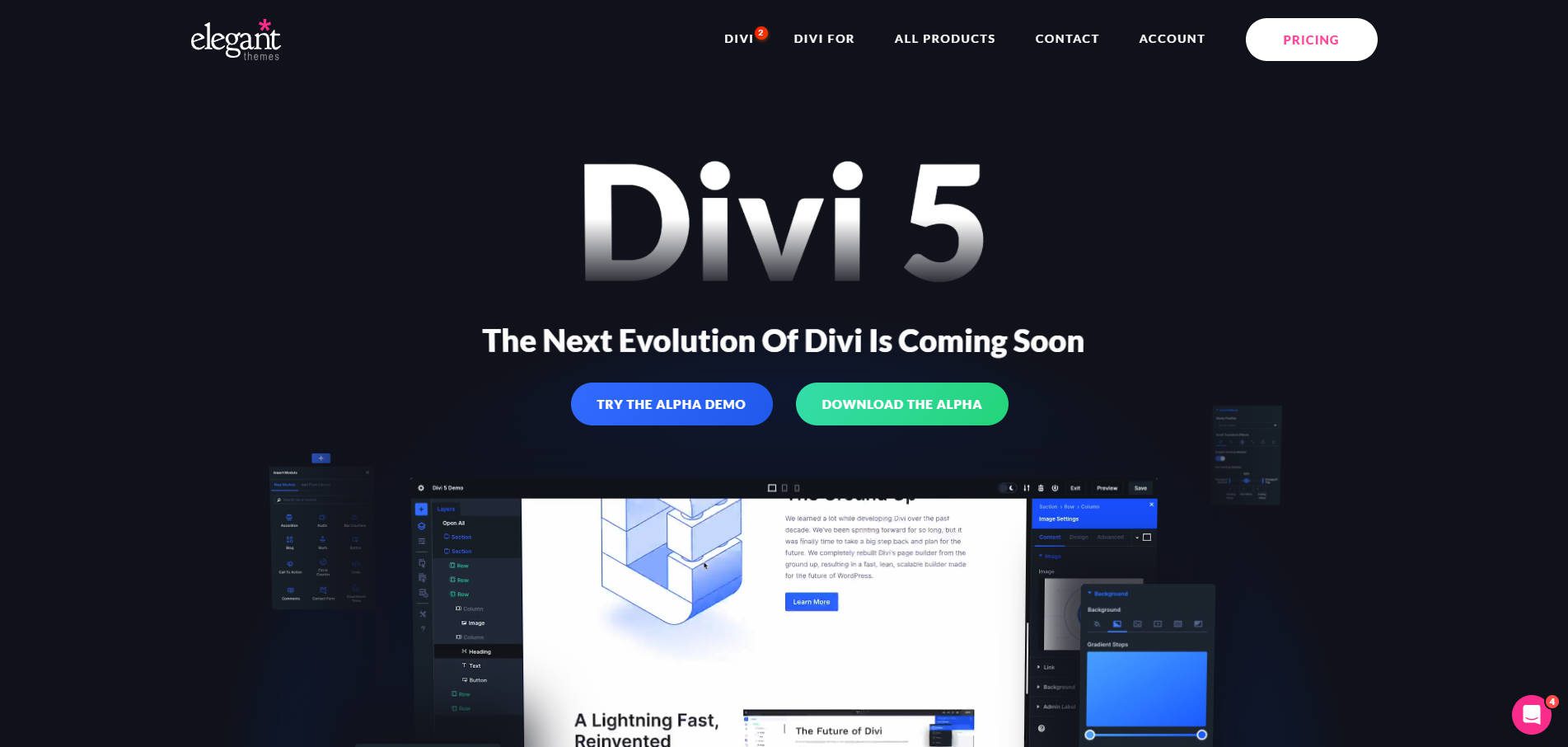
Explore New Workflows
Divi 5’s interface is designed to enhance your productivity, but we understand there are a few things you’ll need to get used to. Take the time to experiment with the new interface. Try docking multiple panels to create a workspace that best suits your needs, or right-click shortcuts to save time when applying styles or duplicating modules.
Revisit Previous Designs
Another great way to learn Divi 5’s new interface is by revisiting your existing designs. Create a staging site of an existing project and use the Divi 5 Migrator to migrate the content to the Divi 5 Public Alpha. Use the layers panel or wireframe view to see how Divi 5’s new structure and tools can help you find that the new interface allows you to fine-tune your designs in ways you couldn’t before.
Take It One Step At A Time
Remember, you don’t have to master every new feature at once. Start by focusing on one or two things, such as canvas scaling for responsive design or the new hover and sticky effects tools. As you get more comfortable with Divi 5, you’ll naturally incorporate more features into your design process.
Be Patient & Experiment
Divi 5 is designed to be more user-friendly, but take your time with the process. Take your time to test different settings, play around with the new interface, and refine your techniques. Each new feature you master will make your workflow smoother and more efficient.
If You Encounter A Problem, Let Us Know
It’s also important to understand that the latest release is only an alpha version. There are bound to be bugs, so we encourage our users to report anything they may find that doesn’t work as intended. After all, we need your help to make Divi 5 the best it can be. Your feedback is critical to its success and will go a long way in molding the final product.
Start Building Websites With Divi 5 Today!
Divi 5 represents a significant leap forward in website-building technology. With its more intuitive Visual Builder, enhanced back end, and innovative features, creating websites with Divi 5 is now faster and more intuitive than ever. With the Divi 5 Public Alpha now available, we encourage you to explore these exciting new capabilities and contribute to its development. By embracing its minimal learning curve and experimenting with the latest tools, you’ll unlock the full potential of Divi 5 and experience a better way to build websites with Divi.
The post 10 Tips For Building Websites Faster With Divi 5 (Public Alpha) appeared first on Elegant Themes Blog.
# 10 Effective Strategies for Accelerating Website Development Using Divi 5 (Public Alpha)
Divi 5, currently in its public alpha stage, is a powerful website builder that offers a plethora of features designed to streamline the web development process. With its intuitive interface and robust capabilities, Divi 5 is set to revolutionize how developers and designers create websites. Here are ten effective strategies to accelerate your website development using Divi 5.
## 1. Leverage the New Visual Editor
Divi 5 introduces a revamped visual editor that enhances the user experience. Familiarize yourself with the new interface and its features, such as inline editing and real-time previews. This allows you to make changes on the fly, reducing the time spent switching between different views.
## 2. Utilize Global Styles and Settings
One of the standout features of Divi 5 is the ability to set global styles and settings. By defining global colors, fonts, and spacing, you can ensure consistency across your website while saving time on repetitive tasks. Changes made to global settings automatically reflect throughout the site, allowing for quick adjustments.
## 3. Take Advantage of Pre-Built Layouts
Divi 5 comes with an extensive library of pre-built layouts and templates. Use these ready-made designs to jumpstart your projects. You can customize them to fit your brand, which significantly reduces the time spent on design and layout decisions.
## 4. Implement Advanced Design Options
With Divi 5’s advanced design options, you can create visually stunning websites without needing extensive coding knowledge. Explore features like custom CSS, animations, and hover effects to enhance your site’s aesthetics. These options allow for creative freedom while maintaining efficiency.
## 5. Use the Theme Builder for Dynamic Content
The Theme Builder in Divi 5 enables you to create dynamic content layouts for various post types, including blogs, portfolios, and e-commerce pages. By utilizing this feature, you can design templates that automatically apply to new content, saving time on individual page creation.
## 6. Optimize for Performance
Website speed is crucial for user experience and SEO. Divi 5 includes performance optimization tools that help you streamline your site. Use features like minification, lazy loading, and image optimization to enhance loading times, ensuring your site runs smoothly without sacrificing design quality.
## 7. Integrate Third-Party Plugins
Divi 5 is compatible with a wide range of third-party plugins that can extend its functionality. Integrate tools for SEO, analytics, and social media to enhance your site’s capabilities. This allows you to add features without reinventing the wheel, speeding up the development process.
## 8. Collaborate with Team Members
If you’re working in a team, take advantage of Divi 5’s collaboration features. The platform allows multiple users to work on the same project simultaneously. Use comments and version control to streamline communication and ensure everyone is on the same page, reducing the time spent on revisions.
## 9. Utilize the Divi Marketplace
The Divi Marketplace is a treasure trove of additional layouts, modules, and extensions created by the community. Explore this resource to find tools that can enhance your project. By leveraging these assets, you can save time on development and focus on customizing your site.
## 10. Stay Updated with Community Resources
As Divi 5 is in its public alpha stage, the community is actively sharing tips, tutorials, and resources. Engage with forums, social media groups, and official Divi documentation to stay informed about the latest features and best practices. This ongoing learning can help you discover new ways to optimize your workflow.
### Conclusion
Divi 5 (Public Alpha) offers an impressive array of tools and features that can significantly accelerate website development. By implementing these ten strategies, you can enhance your workflow, improve collaboration, and create stunning websites more efficiently. As you explore the capabilities of Divi 5, remember to stay engaged with the community and continuously adapt to the evolving landscape of web development. Happy building!

Recent Comments