
Are you experiencing slowness on your website? Many factors could be contributing, including unused themes taking up server resources. You might also notice slow loading times or receive warnings from performance optimization tools and need guidance to resolve these issues. Unused WordPress themes are not just clutter; they can bloat your website, slowing it down and creating potential vulnerabilities. Old or unused themes may lack updates, making them a target for malicious attacks.
For freelancers and agencies managing multiple WordPress sites, doing this manually can be time-consuming. Tools like Divi Dash provide an all-in-one solution to streamline your workflow.
Ready to take control of your WordPress environment? Let’s explore why removing unused themes is crucial and how you can do it effectively.
Why You Should Remove Unused WordPress Themes
Unused WordPress themes might seem harmless, but they can introduce several issues that could negatively impact your website’s performance and security. Here’s why it’s essential to remove them:
- Security Risks: Every unused theme adds to your website’s attack surface. If an old or inactive theme is no longer updated by its developers, it becomes a potential vulnerability, exposing your site to hackers or malware.
- Slower Website Performance: Even if themes are inactive, they still occupy space on your server and database. This additional load can slow down your website, particularly when performing updates or backups.
- Difficulty in Management: A cluttered WordPress dashboard with multiple unused themes can make managing your site more complicated. Removing unnecessary themes ensures a cleaner and more organized environment.
Cleaning up your installation protects your site and optimizes it for better performance.
Difference Between Deleting WordPress Themes and Uninstalling WordPress Themes
Understanding the difference between deleting and uninstalling WordPress themes is crucial before proceeding with any cleanup. Although these terms are often used interchangeably, they refer to different actions within WordPress.
When you uninstall a theme, you deactivate it. However, the theme files remain on your WordPress site. Uninstalling is typically done when switching to a new active theme, but the old theme remains in your directory. While it reduces immediate use, uninstalled themes can still pose security risks since their files remain stored on the server.
Deleting a theme permanently removes all associated files from your WordPress installation. This action ensures the theme no longer occupies space in your directory or database. Deleting is the recommended approach for no longer-needed themes, as it eliminates security vulnerabilities and frees up server resources.
Uninstalling leaves the theme dormant but still present, while deleting ensures it is completely removed from your site. If you’re certain you won’t use a theme again, deletion is the best choice for optimizing your WordPress environment.
Method 1: How to Remove Unused WordPress Themes Through Admin Area
One of the simplest ways to remove unused WordPress themes is by using the WordPress admin area. This method is user-friendly and doesn’t require any technical knowledge. Here’s a step-by-step guide:
Step 1: Backup Your Website
Backing up your website is essential before making any changes. This ensures you can restore your site in case of accidental data loss. Use plugins like UpdraftPlus to back up your WordPress files and database fully.
Step 2: Access the WordPress Dashboard
Log in to your WordPress admin panel. Navigate to the Appearance section from the left-hand menu.
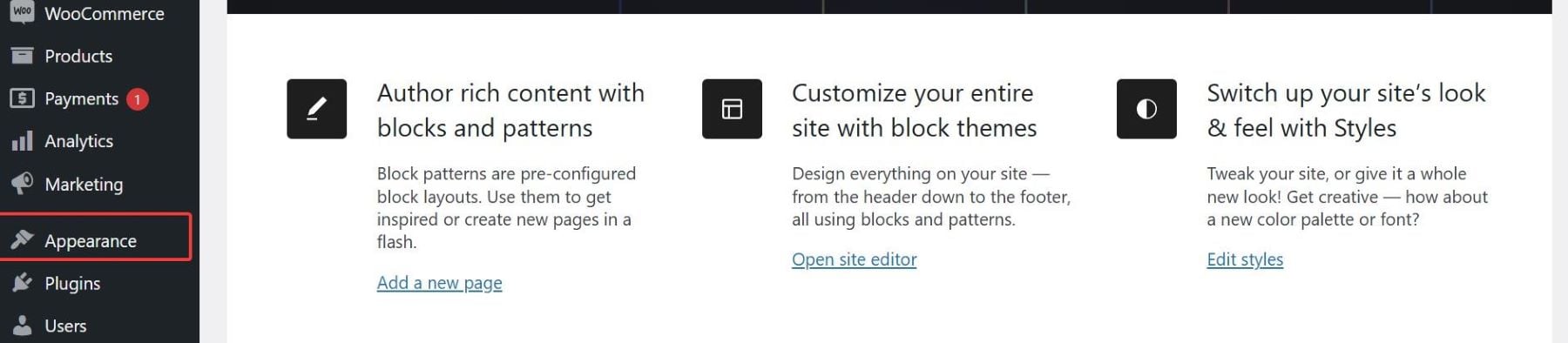
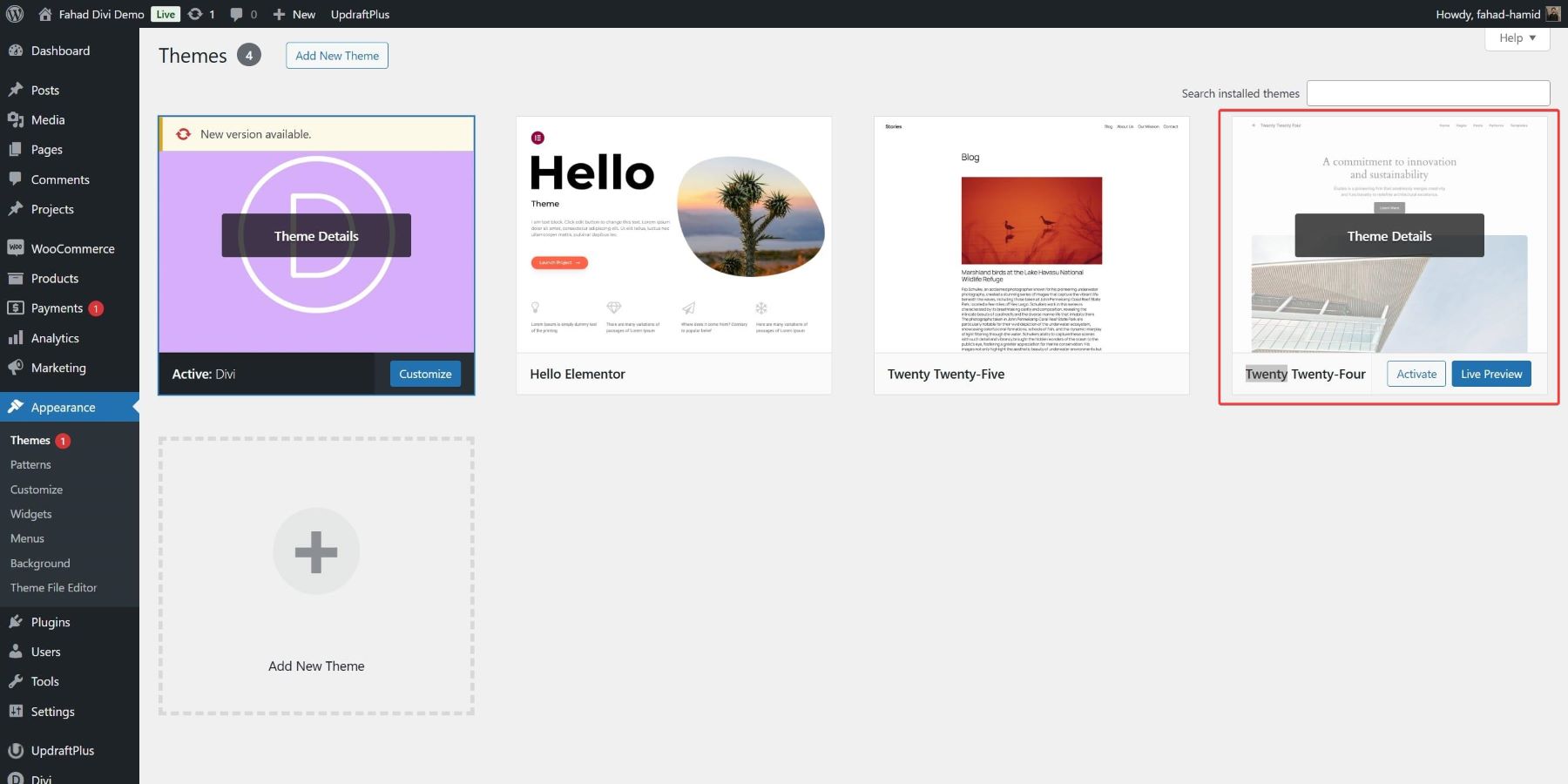
Click on Themes to see a list of all installed themes on your site.
Step 3: Delete Unused Themes
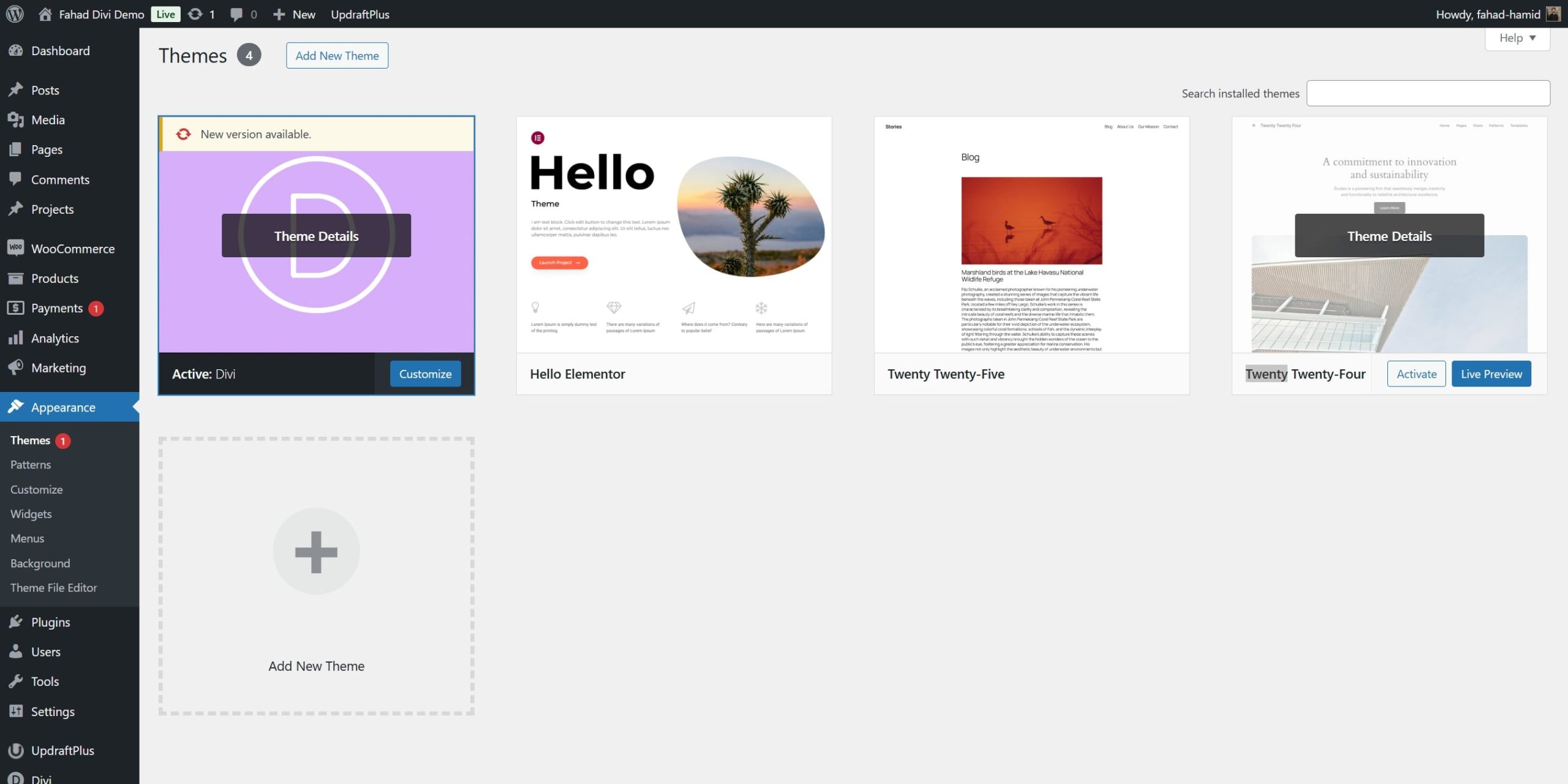
Identify the themes you no longer need. Remember, you cannot delete the currently active theme. Hover over the thumbnail of the theme you want to delete and click on the Theme Details button. In this case, we will remove the Twenty Twenty-Four (2024) theme as I already have the latest version of the default theme (Twenty Twenty-Five).
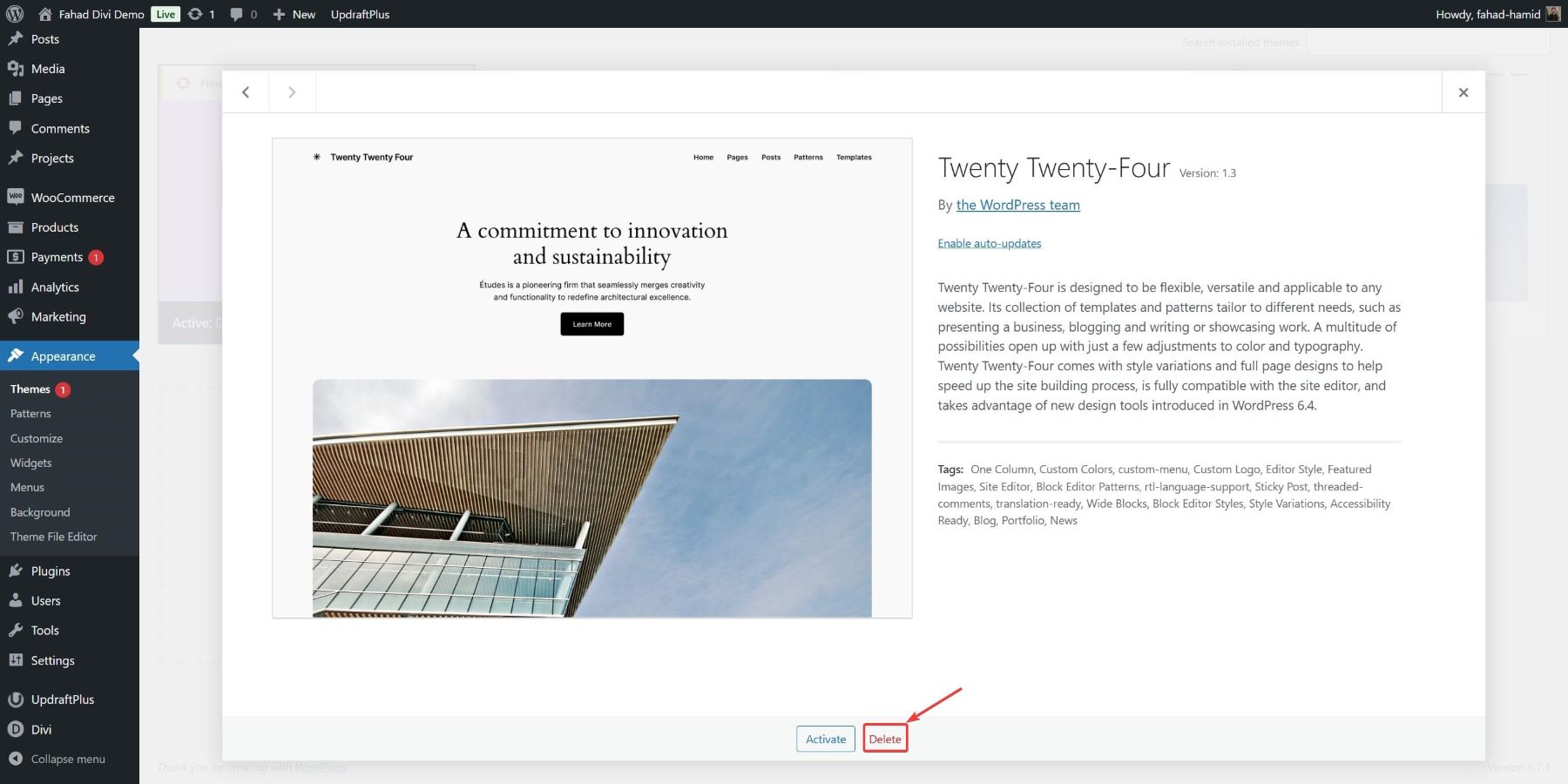
Click the red Delete button in the bottom-right corner of the theme details popup.
When prompted, confirm the deletion. The theme will now be completely removed from your WordPress installation.
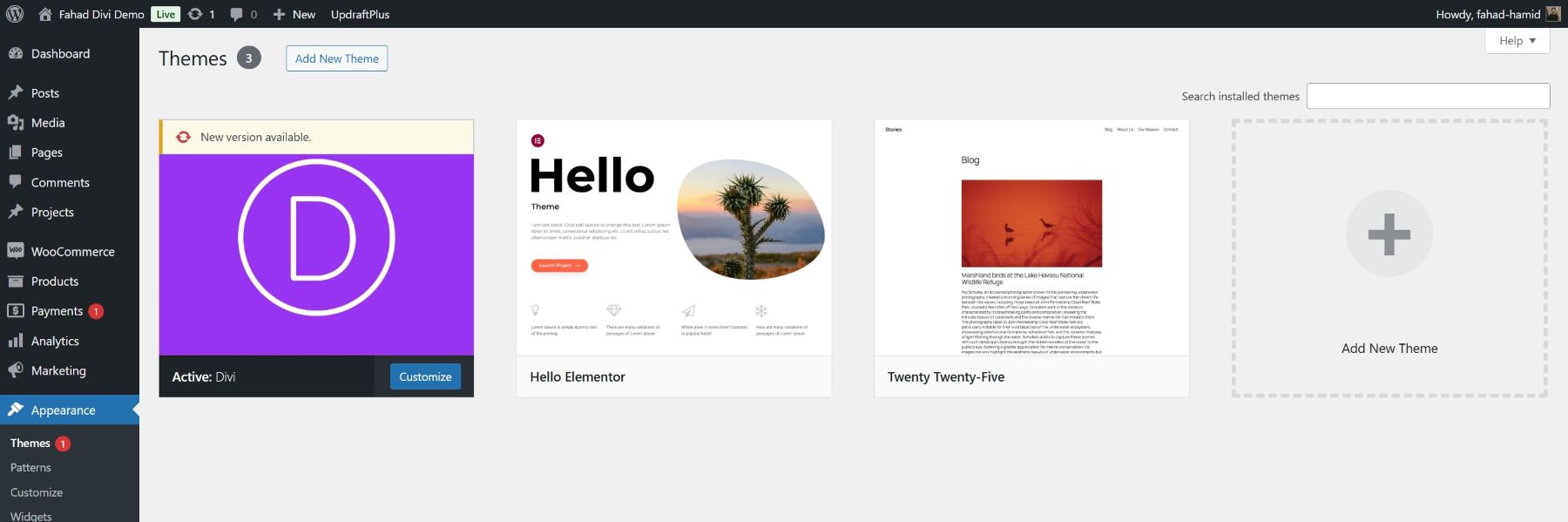
Using the admin area is the most accessible method for WordPress users. It lets you quickly declutter your site while ensuring you retain control over what stays and goes.
Method 2: How to Remove Unused WordPress Themes via FTP
Removing unused WordPress themes via FTP (File Transfer Protocol) is a reliable method for those comfortable with file management and who want greater control. This approach is particularly useful if you cannot access the WordPress admin area due to technical issues. Just as with any changes to your site, it’s essential to back up your website before proceeding. Use your preferred backup plugin or create a manual backup of your WordPress files and database.
Step 1: Connect to Your Website via FTP
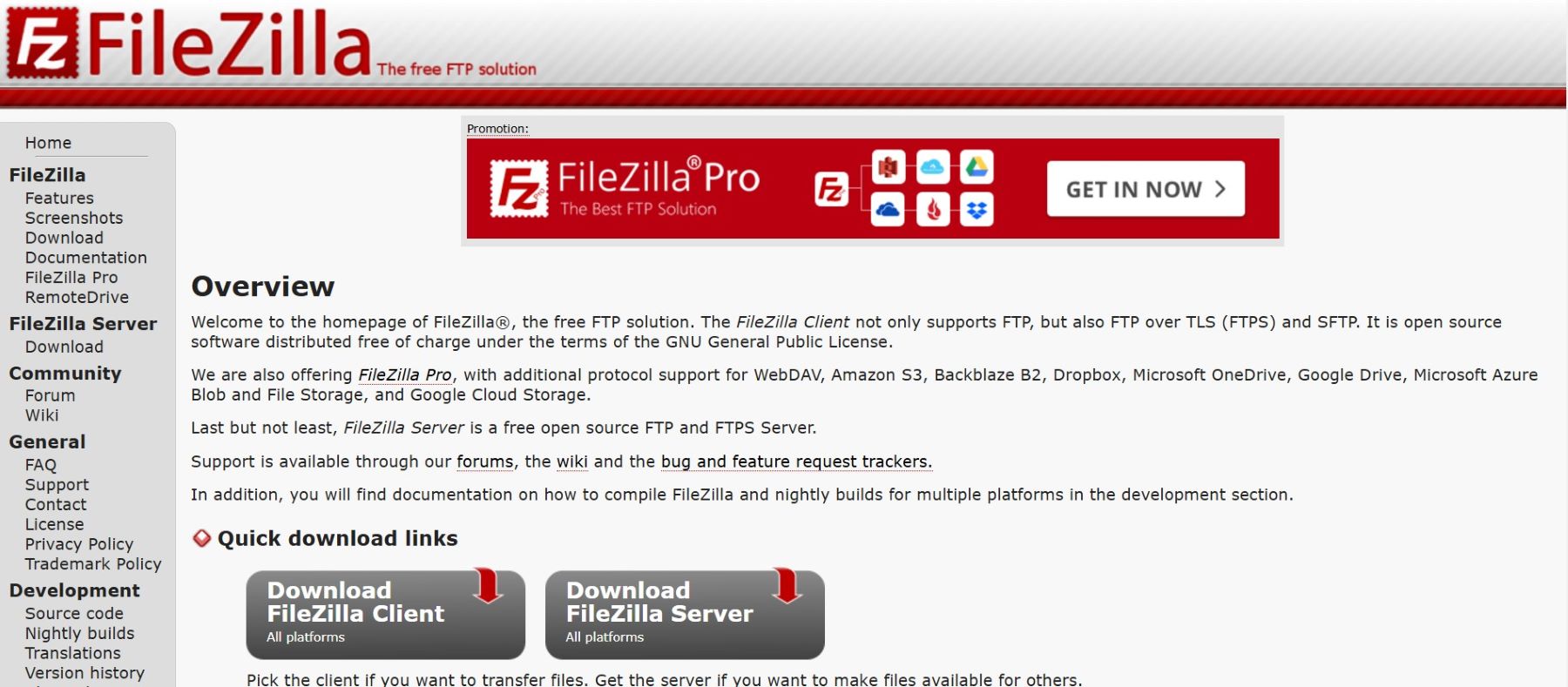
In this case, we will use FileZilla as our FTP client and log in to your server using our FTP credentials. After connecting, go to the root folder of your WordPress installation.
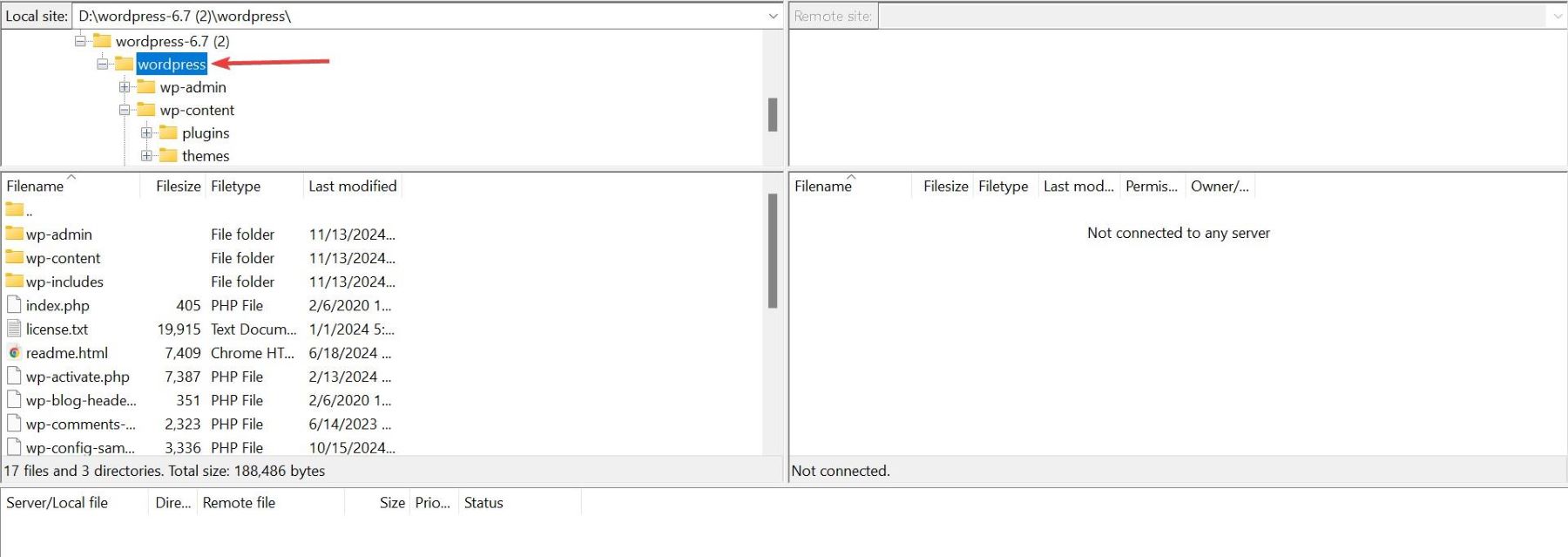
Navigate to the wp-content folder, then open the themes folder. Here, you’ll find all the themes installed on your WordPress site.
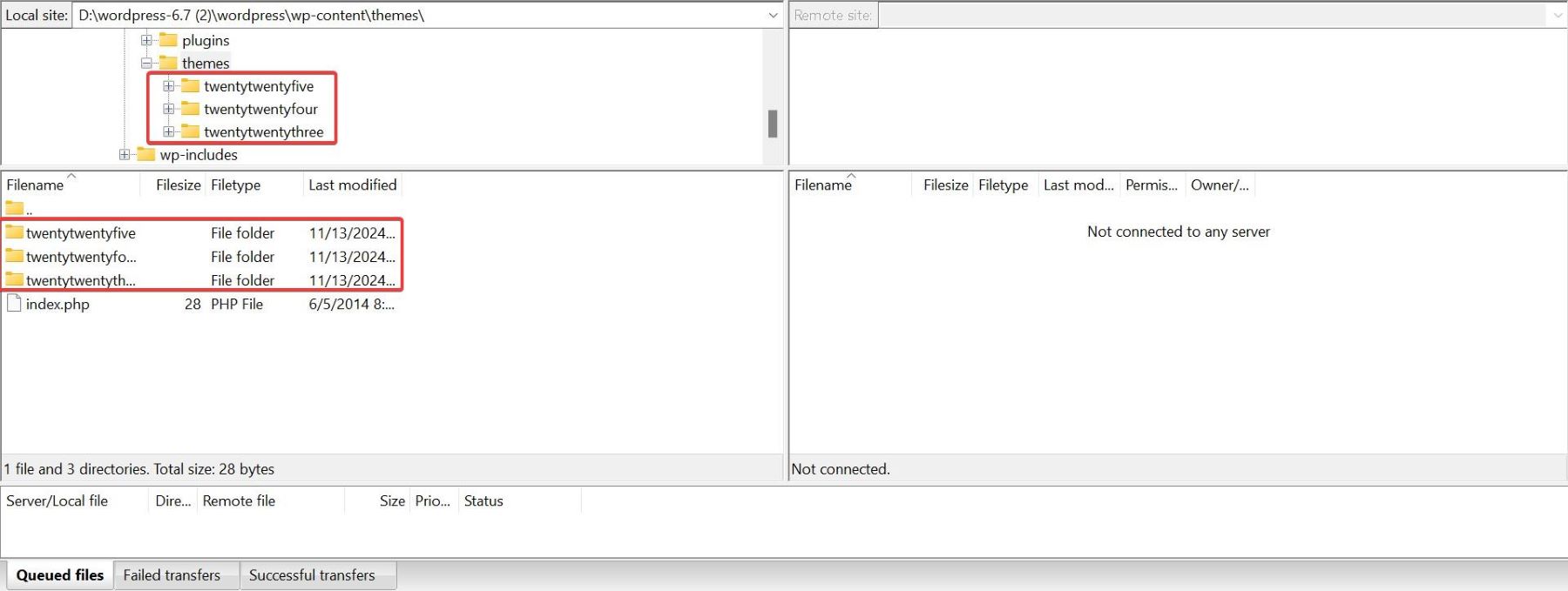
Step 2: Delete the Unused Themes
Identify the folder corresponding to the theme you want to delete. Right-click the folder and choose the Delete option. Just like in the previous method, we will be deleting the twenty twenty-four theme.
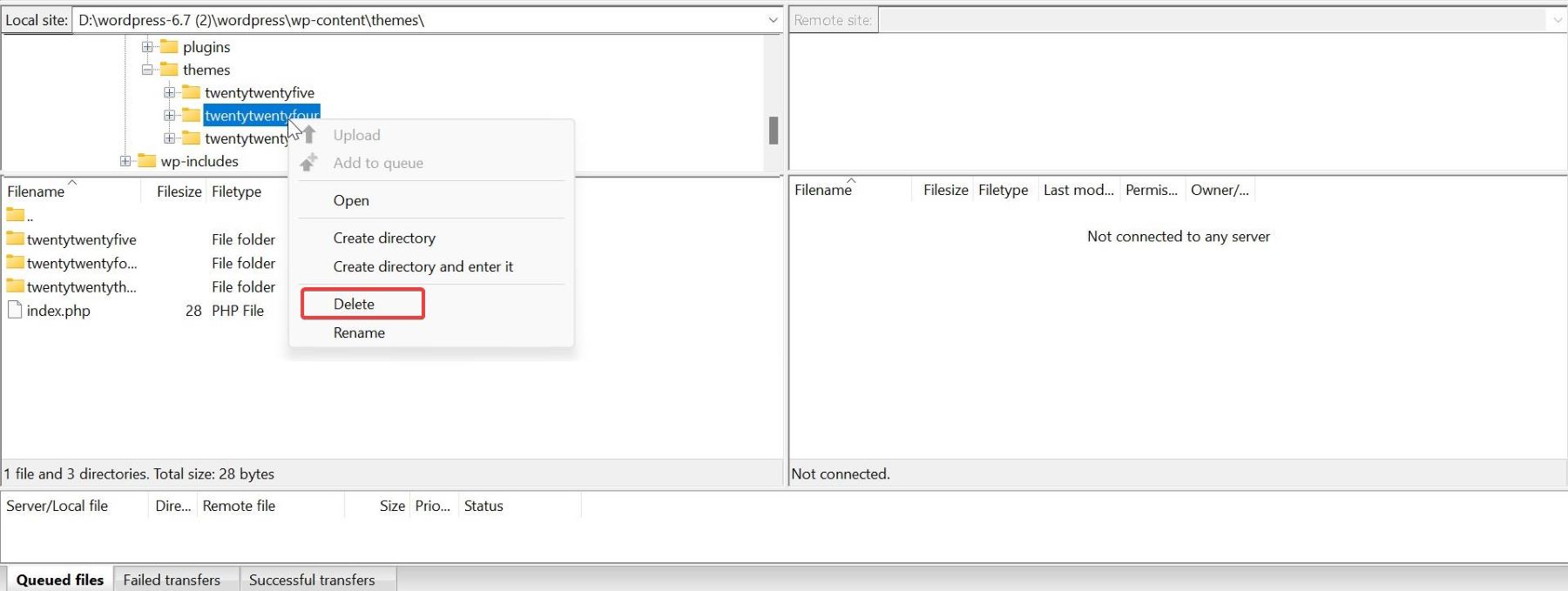
Confirm the deletion. The theme folder and its files will be permanently removed from your server.
NOTE: Be cautious when deleting files via FTP to avoid accidentally removing essential files or active themes. Double-check the folder name before deletion.
Method 3: How to Remove Unused WordPress Themes via Host’s File Manager
If you don’t have access to FTP or prefer using your hosting provider’s control panel, you can remove unused WordPress themes through the host’s file manager. This method is convenient and requires no additional software.
Step 1: Access Your Hosting Account
Log in to your hosting account. Locate and open the File Manager tool. This is usually found in the control panel (e.g., cPanel, Plesk, or a custom hosting dashboard).
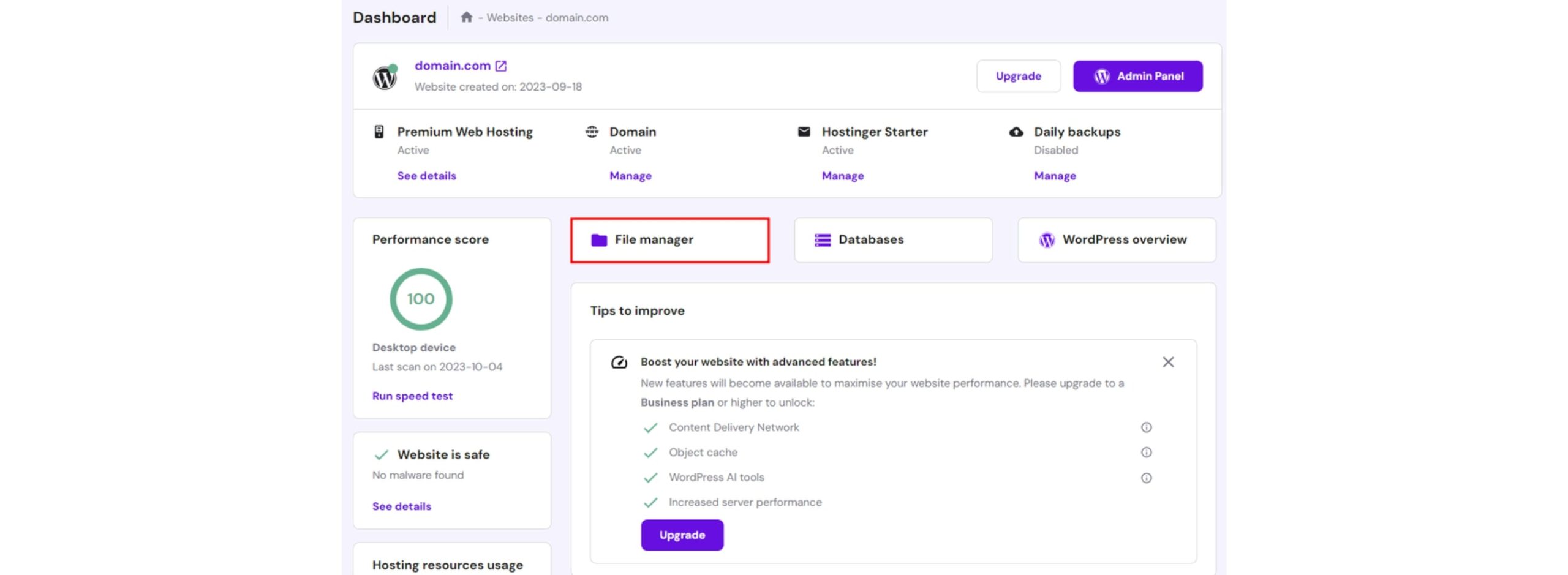
Step 2: Navigate to the Themes Directory
In the File Manager, go to the root directory of your WordPress installation. This is often called public_html, www, or something similar. Open the wp-content folder and then the themes folder, where all your installed WordPress themes are stored.
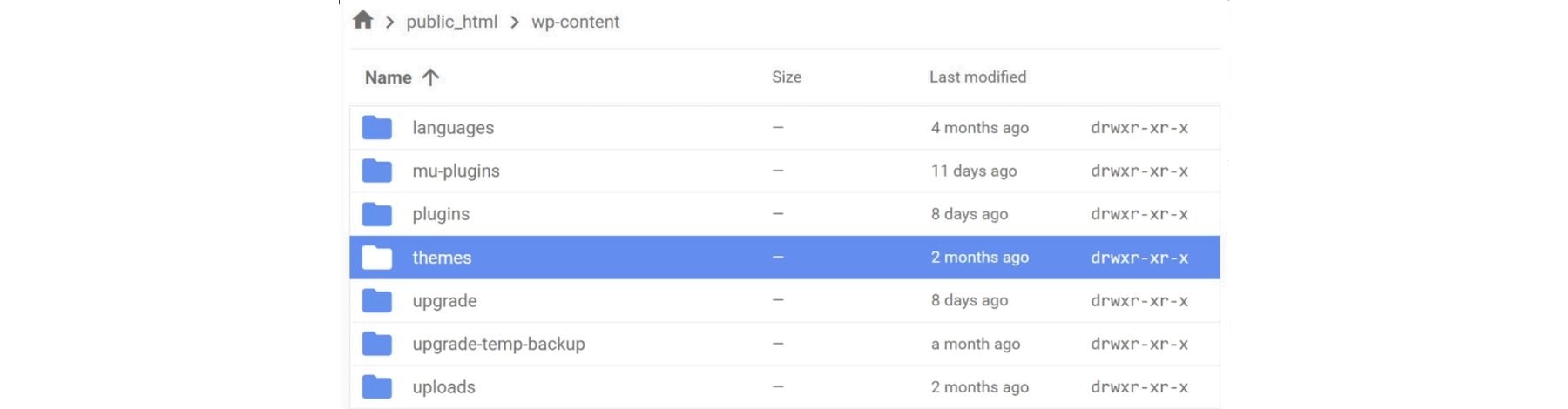
Step 3: Delete the Unused Themes
Identify the folder in which you wish to delete the theme. The folder name corresponds to the theme’s name.

Confirm the deletion to remove the theme from your server permanently.
NOTE: Always double-check the theme folder before deletion to ensure you’re not removing an active or essential theme.
What to do After Removing an Unused WordPress Theme
Once you’ve removed the unused themes from your WordPress site, there are a few important steps to ensure your website remains optimized, secure, and fully functional.
- Clear Cache: If you use a caching plugin like WP Rocket or W3 Total Cache, clear your site’s cache after deleting themes. This ensures any references to the removed themes are updated, preventing display issues. Some hosting providers also offer server-level caching tools that may need to be refreshed.
- Update Your Active Theme: Ensure your active theme is up-to-date. Keeping your active theme updated ensures you benefit from the latest features, bug fixes, and security patches.
- Optimize Your Database: When themes are removed, residual data (e.g., settings or metadata) might still linger in the database. Use plugins like WP-Optimize or Litespeed to remove unnecessary entries and keep your database lean and efficient.
- Run a Security Scan: Conduct a security scan using plugins like Solid Security or Sucuri Security. This helps detect and remove any vulnerabilities or leftover files from previously installed themes.
- Test Website Functionality: Verify that your website is functioning properly. Check your pages, plugins, and design elements to ensure no broken links or missing assets after the theme removal process.
Following these steps removes unused themes and maintains an optimized and secure WordPress environment. With a streamlined site, you can focus on delivering a better experience for your visitors.
Alternative Tools to Manage WordPress Themes
Managing themes manually can be time-consuming, especially for websites with multiple installed themes. Fortunately, several tools and plugins can simplify the process of managing and optimizing WordPress themes. Here are some notable options:
1. Divi Dash
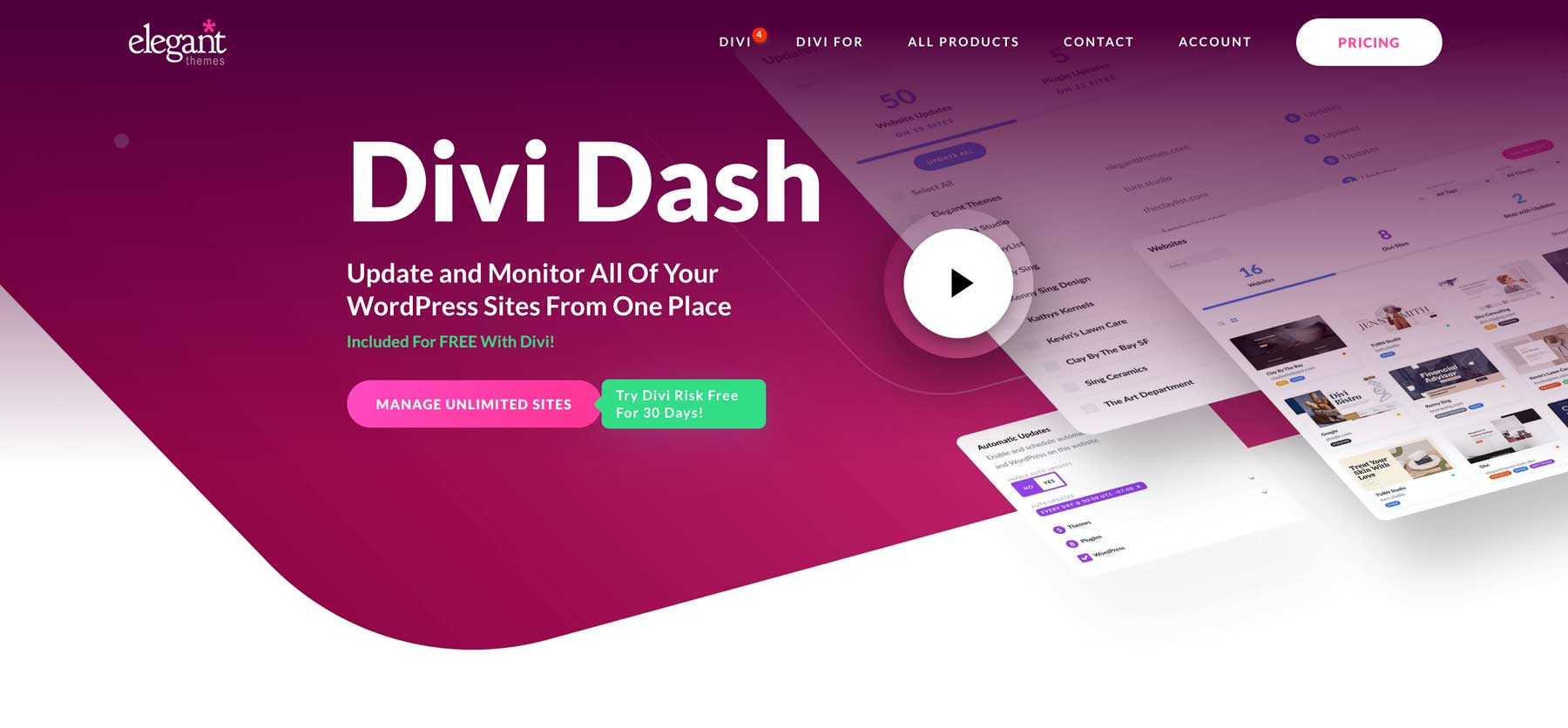
Divi Dash is an all-in-one WordPress website management tool designed to simplify your workflow. Whether you’re handling multiple websites or need a more efficient way to keep everything up-to-date, Divi Dash allows you to manage all your WordPress sites from a single dashboard.
- Update plugins, themes, and WordPress core across multiple sites with one click.
- Monitor security, uptime, and website performance metrics in real time.
- Schedule automatic backups and streamline maintenance tasks.
- Access reports and analytics to optimize site performance.
By leveraging Divi Dash, you can save time, enhance security, and ensure your WordPress sites run smoothly with minimal effort.
Watch Video
Get Divi Dash
2. WP Reset
WP Reset is an all-in-one WordPress tool designed to quickly clean up your site by removing unused themes, plugins, and unnecessary data. It’s especially useful for developers or site managers working on staging or testing environments, as it allows you to reset your WordPress installation while retaining essential components like your active theme and core settings. WP Reset’s snapshot feature ensures you can safely roll back changes if something goes wrong during cleanup.
- Bulk delete unused themes and plugins in a few clicks.
- Reset your WordPress installation to a clean state while preserving key files.
- Create snapshots to restore your site after changes or accidental deletions.
- Optimize your database by removing leftover data from old themes and plugins.
3. Easy Updates Manager
Easy Updates Manager simplifies keeping your WordPress themes, plugins, and core files up-to-date. It’s ideal for users who want to automate updates without manual intervention, ensuring that inactive themes remain secure and your site stays protected. The plugin also provides detailed logs of update activities, helping you monitor changes and troubleshoot any issues caused by updates.
- Automate updates for both active and inactive themes to enhance security.
- Customize update settings for themes, plugins, and the WordPress core.
- Track all update activity with detailed logs for better visibility.
- Disable updates selectively for specific themes or plugins when needed.
Keep Your Site Updated for Best Performance
Keeping your WordPress site clean and optimized ensures better performance, enhanced security, and easier management. While seemingly harmless, unused themes can cause vulnerabilities, slow down your site, and clutter your dashboard. By removing these themes using methods like the admin area, FTP, or your host’s file manager, you can declutter your WordPress installation and reduce risks. Moreover, leveraging tools like WP Reset and Easy Updates Manager can streamline the process, whether cleaning up unused themes or automating updates to prevent outdated files. Regular maintenance, including database optimization and security scans, ensures your site remains in top shape.
Streamline Your WordPress Management with Divi Dash
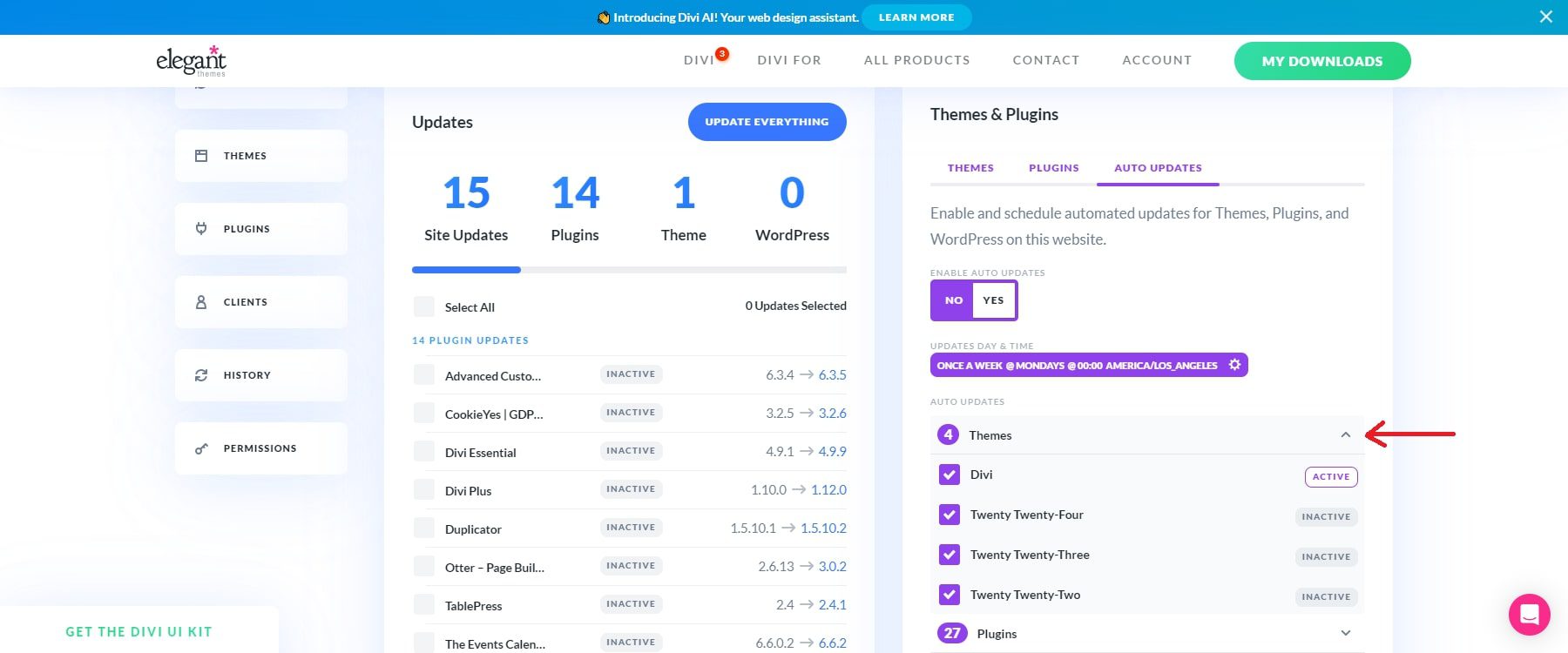
If you manage multiple sites and want to streamline the process of managing themes and plugins, Divi offers a powerful site manager that comes free with a Divi membership.
With Divi Dash, you can handle critical WordPress tasks—including updates, security checks, and performance monitoring—without switching between multiple websites. Whether you’re managing client projects or maintaining personal sites, Divi Dash ensures that everything stays up to date and secure.
Ready to simplify your website management? Take control of your WordPress ecosystem with Divi Dash today.
Looking to declutter your WordPress installation? Start removing unused themes today and enjoy faster, safer, and more efficient website performance. Moreover, we have provided you a table of tools to help you speed up this process.
| Featured Product | Category | ||
|---|---|---|---|
| 1 | Filezilla | FTP Client | Get |
| 2 | WP Rocket | Caching | Get |
| 3 | W3 Total Cache | Caching | Get |
| 4 | WP Optimize | Data Optimization Plugin | Get |
| 5 | Litspeed | Data Optimization Plugin | Get |
| 6 | Solid Security | Security Plugin | Get |
| 7 | Sucuri Security | Security Plugin | Get |
| 8 | WP-Reset | WordPress Theme Management | Get |
| 9 | Easy Updates Manager | WordPress Theme Management | Get |
The post How to Remove Unused WordPress Themes & Why You Should appeared first on Elegant Themes Blog.
# A Guide to Removing Unused WordPress Themes and Their Importance for Your Website
WordPress is one of the most popular content management systems (CMS) in the world, powering over 40% of all websites on the internet. One of the many features that make WordPress so versatile is its extensive library of themes. Themes allow users to change the look and feel of their websites with ease. However, as you explore different design options, you may find yourself accumulating a number of unused themes. In this article, we’ll discuss the importance of removing these unused themes and provide a step-by-step guide on how to do it effectively.
## Why Remove Unused WordPress Themes?
### 1. **Security Risks**
Unused themes can pose a significant security risk to your website. Even if a theme is inactive, it can still contain vulnerabilities that hackers can exploit. If a theme is not regularly updated, it may become a target for malicious attacks. By removing unused themes, you reduce the potential entry points for cybercriminals.
### 2. **Performance Optimization**
Having multiple themes installed can slow down your website. Each theme may come with its own set of files, scripts, and stylesheets that can increase the load time of your site. By removing unused themes, you can streamline your website’s performance and improve loading times, which is crucial for user experience and SEO.
### 3. **Easier Maintenance**
Managing a WordPress site with fewer themes simplifies maintenance tasks. You’ll have fewer updates to manage, which means less time spent ensuring that everything is up to date. This can lead to a more efficient workflow, allowing you to focus on content creation and other important aspects of your website.
### 4. **Clutter Reduction**
A cluttered admin panel can be overwhelming, especially for those new to WordPress. By removing unused themes, you can create a cleaner and more organized dashboard, making it easier to navigate and manage your website.
### 5. **Improved User Experience**
A well-maintained website is crucial for providing a positive user experience. By removing unused themes, you can ensure that your site is running smoothly and efficiently, which can lead to higher user satisfaction and engagement.
## How to Remove Unused WordPress Themes: A Step-by-Step Guide
Removing unused themes from your WordPress site is a straightforward process. Follow these steps to ensure a clean and efficient theme management system:
### Step 1: Log in to Your WordPress Dashboard
Access your WordPress admin area by logging in with your credentials. This will take you to the dashboard, where you can manage all aspects of your site.
### Step 2: Navigate to the Themes Section
In the left-hand sidebar, hover over the “Appearance” menu and click on “Themes.” This will take you to the themes management page, where you can see all the themes currently installed on your site.
### Step 3: Identify Unused Themes
Review the list of installed themes. Active themes will be highlighted, while inactive themes will be displayed as options. Identify the themes that you no longer use or need.
### Step 4: Delete Unused Themes
To delete an unused theme, hover over the theme you wish to remove. You will see options such as “Live Preview” and “Theme Details.” Click on “Theme Details,” and in the bottom right corner of the popup, you will find the “Delete” option. Click it, and confirm the deletion when prompted. Repeat this process for any other unused themes.
### Step 5: Clear Your Cache
After removing unused themes, it’s a good idea to clear your website’s cache to ensure that the changes take effect. If you are using a caching plugin, navigate to its settings and clear the cache. If you are using a hosting provider with built-in caching, follow their instructions to clear the cache.
### Step 6: Regular Maintenance
Make it a habit to review your installed themes periodically. Regularly check for unused themes and remove them to keep your website secure and optimized.
## Conclusion
Removing unused WordPress themes is an essential practice for maintaining a secure, efficient, and user-friendly website. By taking the time to clean up your theme library, you can enhance your site’s performance, reduce security risks, and simplify your maintenance tasks. Follow the steps outlined in this guide to ensure that your WordPress site remains in top shape, allowing you to focus on what truly matters—creating great content and engaging with your audience.


Recent Comments