

Managing WordPress sites can be quite a challenge. You might not know what tasks it may include and the best way to handle them. Luckily, there are simplified options available for managing your WordPress site management tasks. Whether you’re a website owner or designer, new to this, or have a lot of experience, Divi Dash is a versatile tool that can help you tackle those burdensome site management tasks.
This post will discuss how this intuitive tool simplifies and automates those dreaded tasks, boosts productivity, and transforms how you maintain your WordPress websites. Let’s get to it!
What Tasks Does “WordPress Management” Include?
If you manage a WordPress website, you’ve probably heard the term “WordPress management”. But, what does it actually involve? Whether you’re a business owner, blogger, or web professional, it’s essential to understand what goes into managing a WordPress site. This section will briefly walk you through some of the different tasks and responsibilities that come with WordPress management, helping you see what’s needed to keep your site running smoothly and effectively.
Updates
Managing WordPress updates is a critical ongoing process. It involves regularly refreshing the core software, themes, and plugins to benefit from new features, improved performance, and security patches. These updates form the majority of your WordPress site’s maintenance tasks.
Theme & Plugin Management
Theme and plugin management in WordPress involves selecting, installing, and maintaining appropriate themes and plugins for your site’s needs from reputed developers who are highly reviewed on public forums. Removing unused or outdated ones is crucial to keep your site efficient and secure. These unused components can take up space, slow your site, and make it vulnerable for hackers to exploit known vulnerabilities.
User Management
User management in WordPress is about creating and overseeing accounts, setting roles and permissions, and maintaining secure site access. The process starts by establishing user roles like Administrator, Editor, Author, Contributor, and Subscriber. When adding new users, you’ll set up usernames, email addresses, and initial solid passwords. For sites with multiple authors, user management also involves organizing editorial workflows and determining who can own and edit different content. This approach ensures smooth operations and appropriate access levels for all team members working on the WordPress site.
Database Upkeep
Database upkeep is a crucial aspect of WordPress management that often goes unnoticed until problems emerge. Essentially, it’s about ensuring the health and efficiency of your WordPress database, which houses all your site’s content and settings. This optimization process usually involves purging unnecessary data, including post revisions, spam comments, and transients.
Environment Tweaking
Environment tweaking involves fine-tuning your WordPress site’s hosting environment and server settings to optimize performance, security, and functionality. This process is separate for every website and includes adjusting PHP settings, such as maximum execution times, file upload times, memory limits, and more. By making these adjustments, you can ensure that your WordPress site operates at peak efficiency, providing a smooth experience for administrators and visitors.
Why Is Managing WordPress Important?
WordPress is a powerful, accessible, and open-source platform that is amazing at helping its users achieve their website-building goals. Its user-friendly interface and vast plugins and themes make it incredibly adaptable to different use cases. Keeping your WordPress site in top shape is crucial. Regular maintenance helps patch security vulnerabilities, keeping your data safe and your users’ trust intact. If you neglect those above-mentioned tasks, you’re essentially rolling out the welcome mat for cybercriminals.
It’s not just about security, though. WordPress constantly evolves its code to make it run more smoothly and efficiently. Staying on top of maintenance tasks gives your visitors a better experience, which can work wonders for keeping them engaged and even give you a leg up in search rankings.
So, while WordPress offers flexibility and potential, it’s up to you to keep it running at its best. Regular maintenance isn’t just a chore—it’s essential for unlocking this platform’s full power. Fall behind, and you risk looking outdated and encountering issues that could tarnish your online reputation.
What Is Divi Dash?
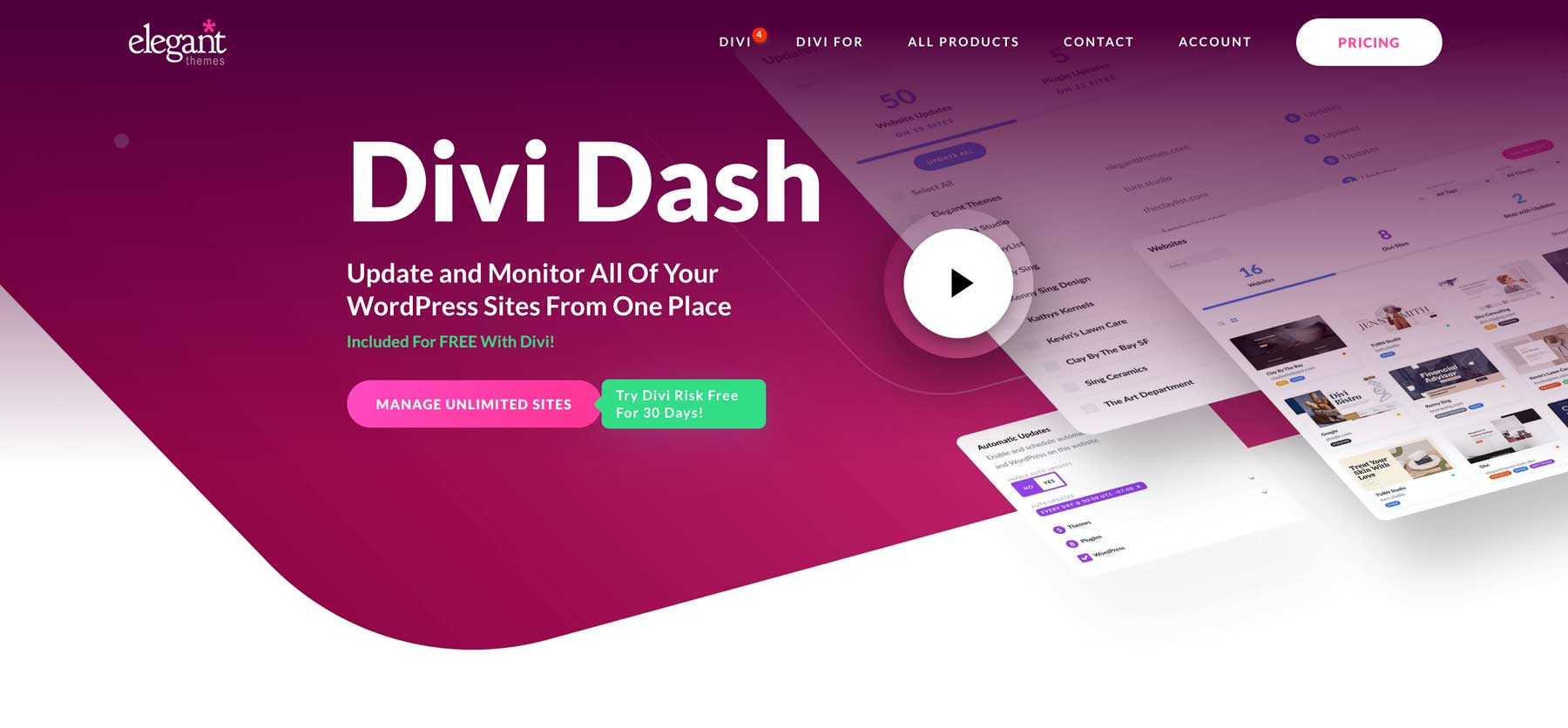
The struggle is real regarding keeping multiple WordPress sites up to date. Between juggling plugin and theme updates, ensuring compatibility, and staying on top of core updates, it’s easy to get overwhelmed.
That’s where Divi Dash comes in—a game-changing site management solution that simplifies the process of overseeing multiple WordPress websites. It’s bundled with your Divi membership at no extra cost. You’ll save time on updates, user and client management, and theme and plugin tasks. With Divi Dash, you can see all your sites at once and access each WordPress dashboard quickly. It works with any WordPress site, not just those using Divi.
The main screen shows you what needs attention on each site. You can tag sites by client, which helps you run your web design business more smoothly. Adding new sites is easy; you can automatically update WordPress, themes, and plugins.
Divi Dash gives you a clear view of each site’s status, users, and optimization needs. You can also manage themes and plugins directly. If you work with a team, Divi Dash connects with Divi Teams, letting you set custom permissions for your colleagues and clients.
How To Use Divi Dash
To start with Divi Dash, visit the Elegant Themes’ Members Area and select ‘Dash’ from the main menu. After that, click on the ‘Add Your First Website’ button to proceed. As mentioned, Divi Dash is free if you have a Divi membership. If you haven’t signed up yet, now is a great time to do so and enjoy these powerful features.
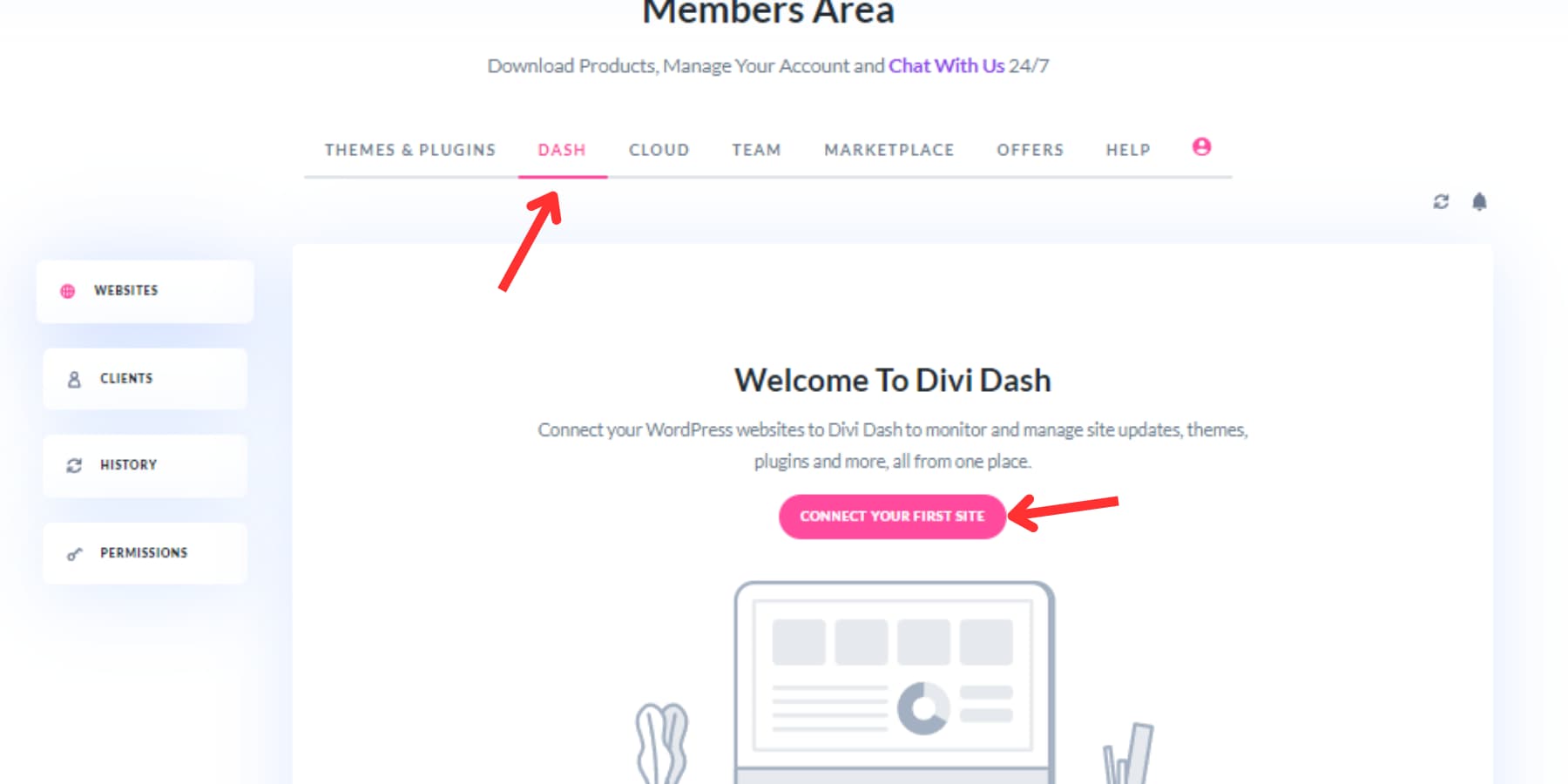
Then, input your website’s URL, admin username, and password in the popup box. You can use a connect key if you prefer not to enter your password. You may repeat the same steps for all of your websites. Once you have added your website(s), you will be greeted with a dashboard with all important things neatly organized and ready to be looked after.
Let’s see how you can use Divi Dash to streamline your WordPress site maintenance tasks:
1. Using Divi Dash To Manage Updates
The Divi Dash screen’s update tab offers a quick glimpse of the available sites and enables bulk updates across all sites with a single click. These updates encompass not just theme and site modifications, but also updates to the WordPress core.
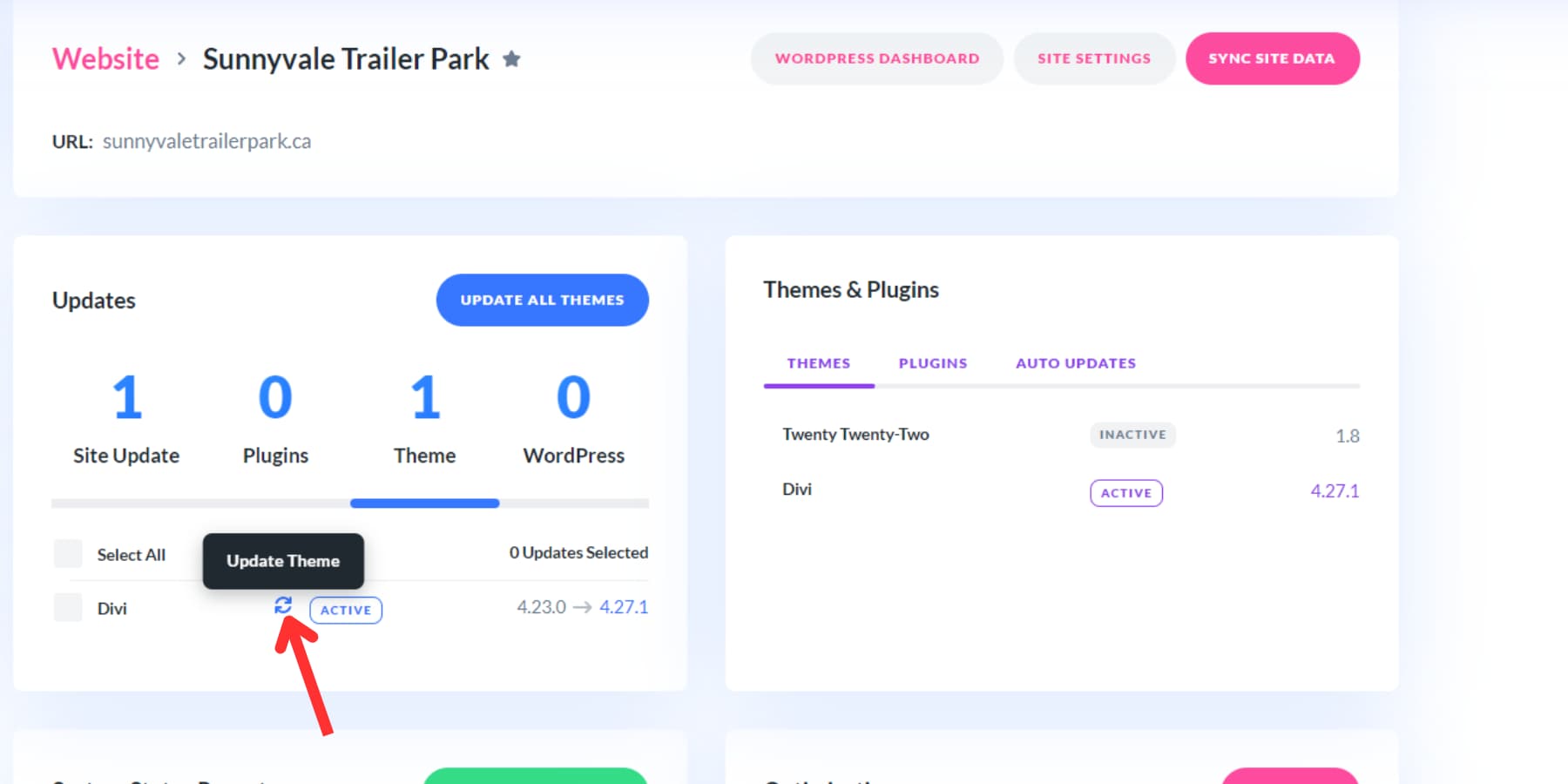
Those who prefer a more manual approach can update specific websites by selecting their name in the dashboard, navigating to the updates section, and choosing the update icon for the desired themes and plugins.
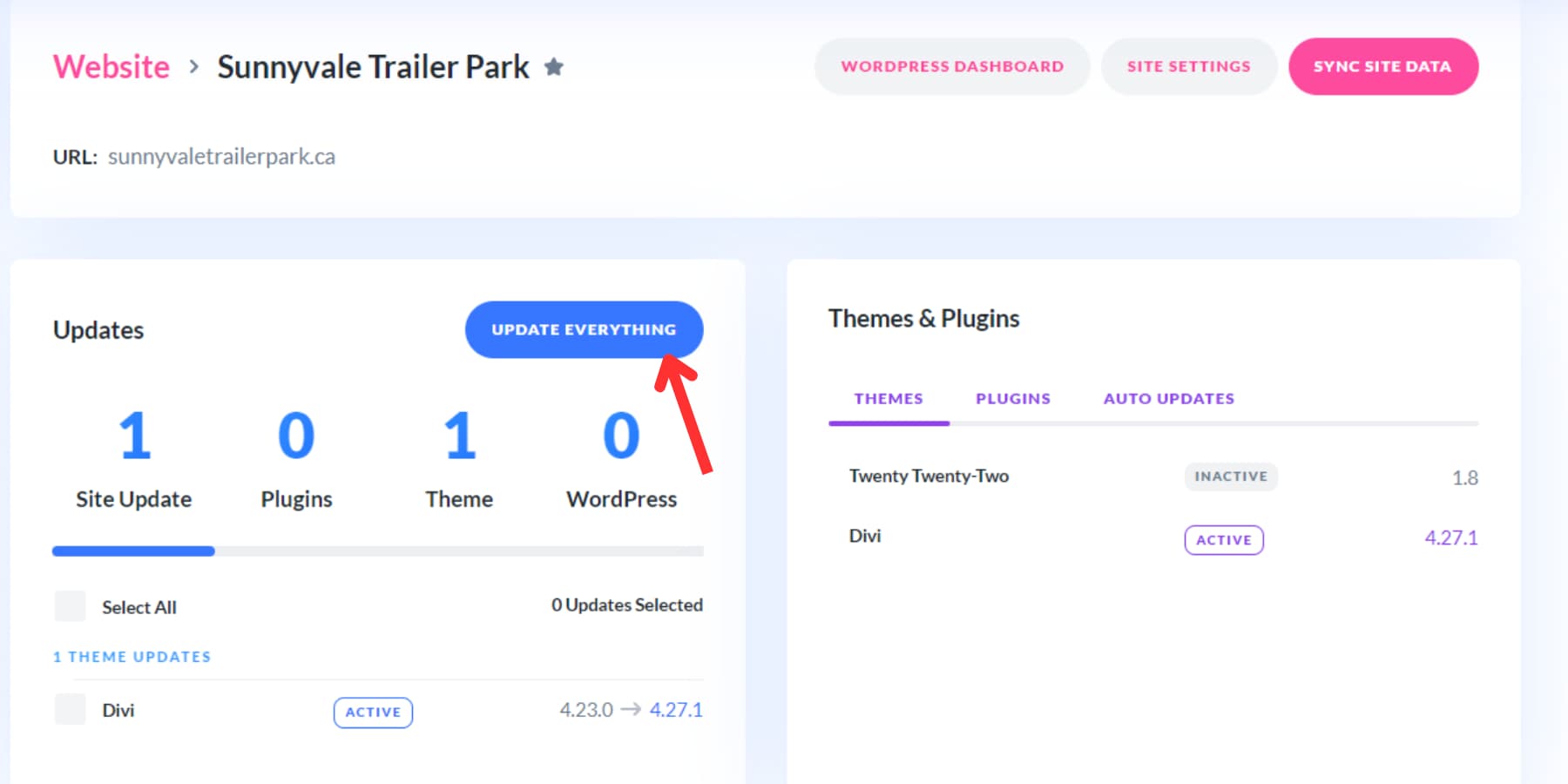
If multiple updates are pending, the Update Everything option can be used to make all updates at once for the selected website.
To update a particular theme or plugin across various sites, access the themes or plugins tab, click on the desired theme or plugin, and select the “Update All” button.
Speaking of which, Divi Dash’s automation feature allows you to create a custom update schedule for each website. You can specify what gets updated and when customizing the process to suit your needs.
2. Using Divi Dash To Manage Themes & Plugins
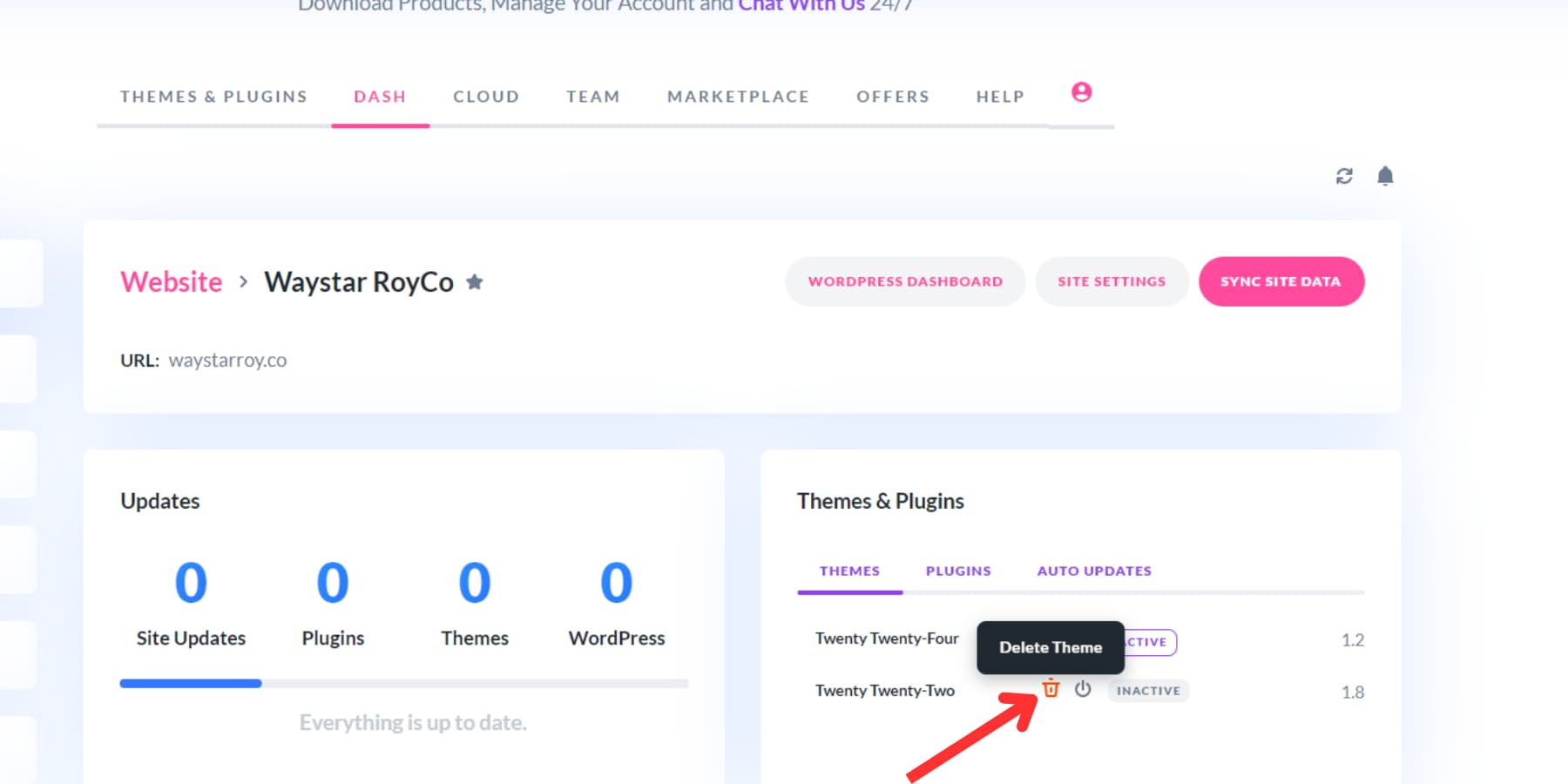
Divi Dash provides a comprehensive view of all the themes and plugins used on your websites, allowing you to manage updates, activations, and deactivations and easily remove unused themes and plugins.
These can also be done on a per-site basis in the Theme & Plugin section of your website’s dashboard.
3. Using Divi Dash To Manage Users
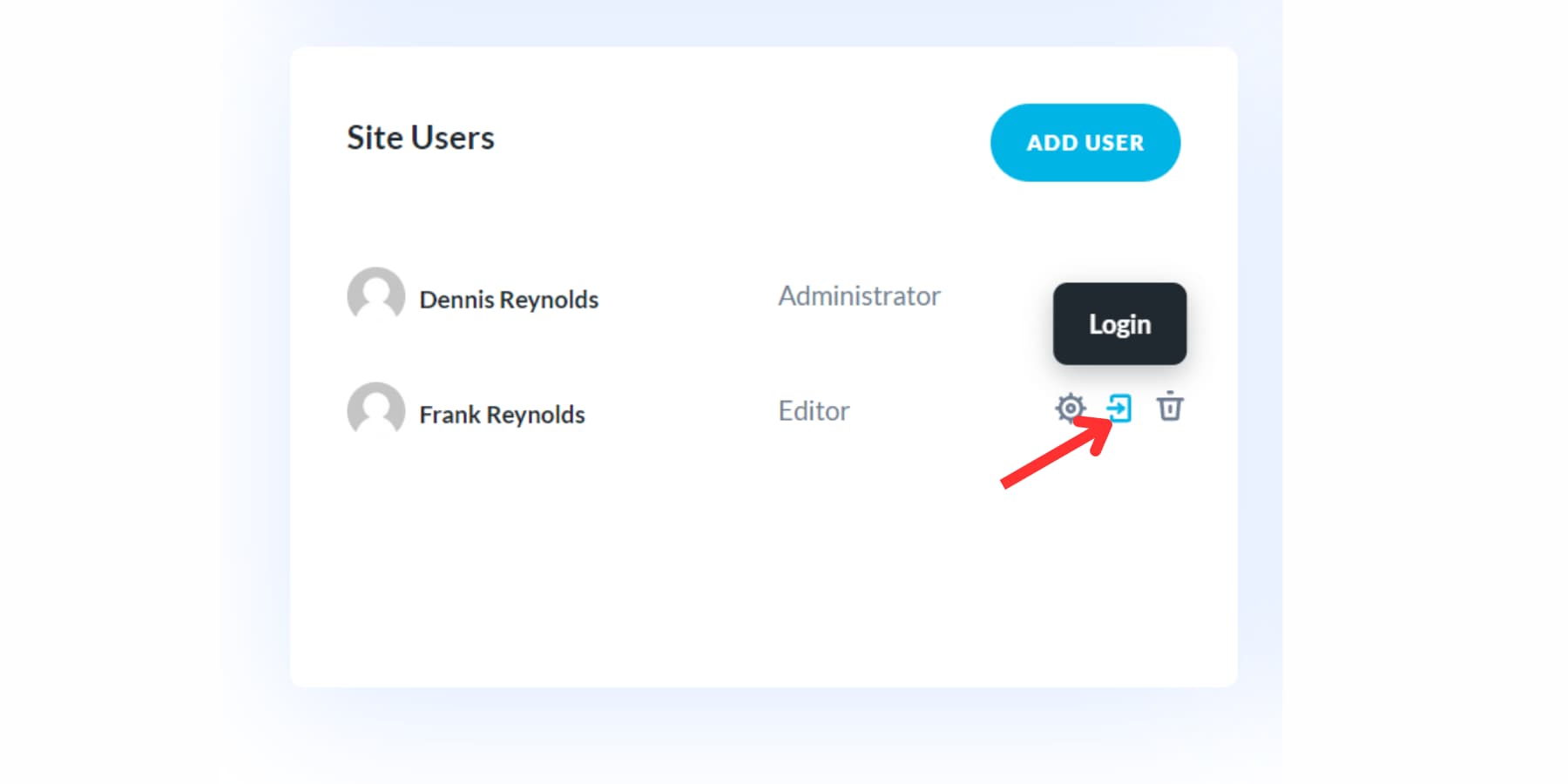
Divi Dash also simplifies user management. Adding new users is straightforward: Navigate to your website dashboard, scroll down to the users section, click a button, fill in the details, and they’re in.
A convenient hover feature over usernames reveals options, including a one-click login as that user. You can modify user details like names, roles, and passwords and even delete users as needed.
You may also assign websites to clients within Divi Dash for easy tracking. The client tab provides a client-focused overview of your websites. Clicking a client reveals their contact details, saved notes, and the websites you manage for them.
Divi Dash also integrates with Divi Teams, enabling team collaboration on client websites. Assign specific permissions to each user, such as allowing update management while restricting critical tasks like user management or plugin deletion.
4. Site Optimization With Divi Dash
Your website’s dashboard also features a dedicated optimization area designed to streamline website and database upkeep. You can remove unnecessary items like spam comments, old posts and page revisions, and trashed posts and pages with a single click. This easy process helps maintain a tidy and efficient website database. Coupled with regular updates, it can significantly enhance your website’s performance.
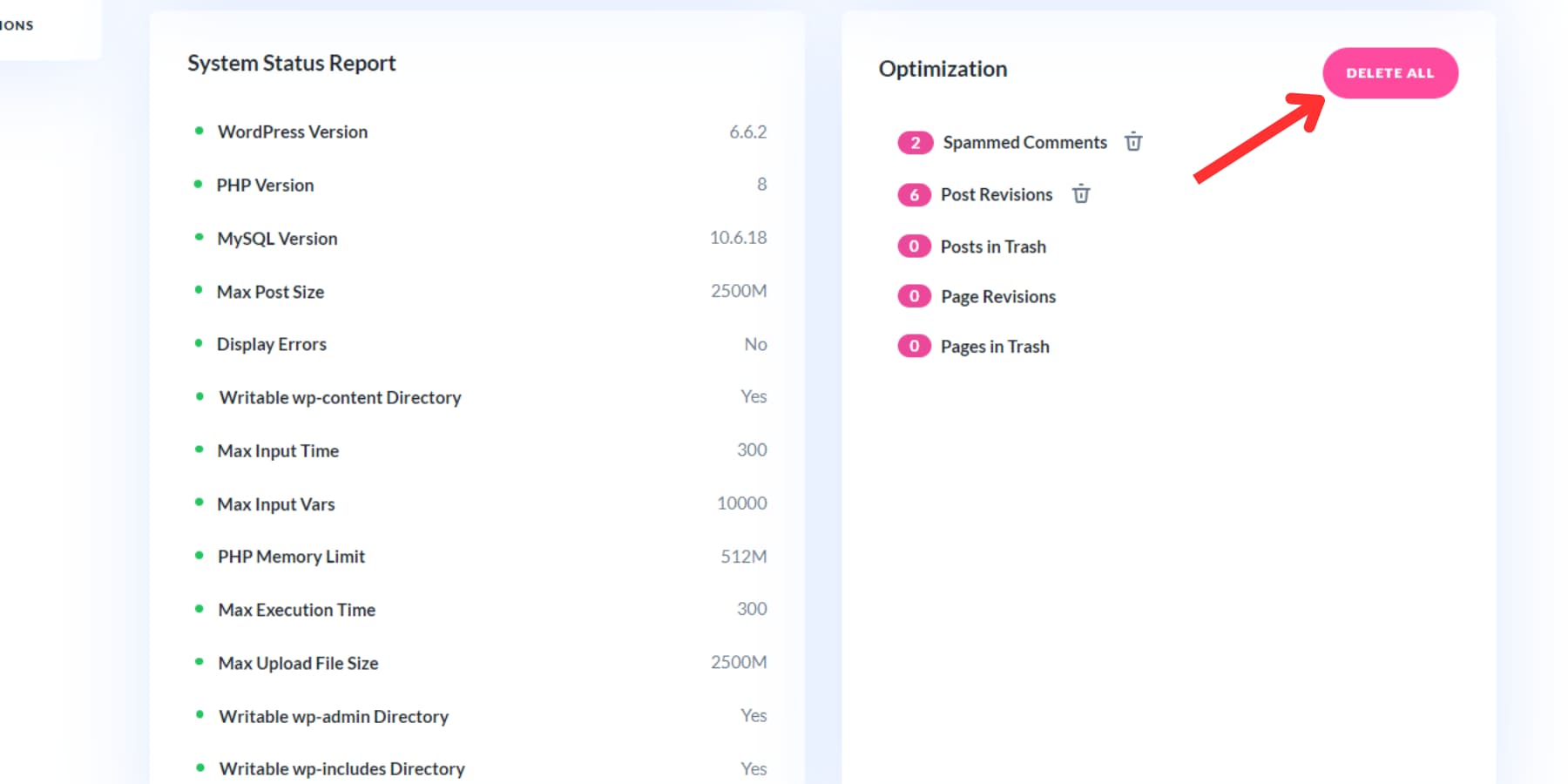
Adjacent to this section, you’ll find the System Status Report. This report displays essential settings that your hosting provider should have enabled for your site, offering further avenues for performance improvement. By checking this section, you can quickly identify any environmental discrepancies that might be affecting your website. A green dot indicates that a component has optimally passed all tests and functions. If a component requires attention, you can either adjust it yourself or contact your hosting provider for assistance.
Divi Dash will soon have more practical features, such as uptime monitoring, analytics, and vulnerability reporting. Divi Dash is available for free for all Divi Members. If you’re not one, become a member today by clicking the button below.
Streamlining Your Workflow: Putting It Together
Consistent upkeep of your WordPress site is essential for maintaining its security, speed, and overall functionality. By implementing the maintenance practices mentioned earlier in this article, you can ensure a robust and protected online presence.
But here’s the thing: taking care of a WordPress site isn’t rocket science, but it can consume a lot of your time. As you keep doing it daily, week after week, it might start to feel like a chore. That’s when people often begin to put it off. However, there’s a solution for Divi members. Divi Dash allows you to carry out these tasks efficiently and even automate many of them, helping keep your website optimized and more manageable.
But wait, there’s more to a Divi Membership than just the theme and Divi Dash. You also get access to Divi AI and Divi Quick Sites. These powerful tools enable you to generate a website with relevant content and images tailored to your brand simply by describing your brand identity. This feature set can significantly streamline your website design and management process.
The post How To Streamline Your WordPress Site Management Tasks appeared first on Elegant Themes Blog.
# Strategies for Efficient Management of Your WordPress Site
Managing a WordPress site can be a rewarding endeavor, whether you’re running a personal blog, an e-commerce store, or a corporate website. However, without proper management, it can quickly become overwhelming. Here are several strategies to help you efficiently manage your WordPress site, ensuring it runs smoothly and effectively meets your goals.
## 1. Choose the Right Hosting Provider
The foundation of a well-managed WordPress site begins with selecting a reliable hosting provider. Look for hosts that specialize in WordPress, offering features such as:
– **One-click installations**: Simplifies the setup process.
– **Automatic updates**: Keeps your WordPress core, themes, and plugins up to date.
– **Performance optimization**: Features like caching and Content Delivery Networks (CDNs) to enhance site speed.
– **Excellent customer support**: Quick assistance can save you time and stress.
## 2. Regular Backups
Data loss can occur due to various reasons, including hacking, server failure, or accidental deletion. Implement a regular backup strategy using plugins like UpdraftPlus or BackupBuddy. Schedule automatic backups to ensure you always have the latest version of your site stored securely. Consider storing backups in multiple locations, such as cloud storage (Google Drive, Dropbox) and your local machine.
## 3. Optimize Your Site for Speed
Site speed is crucial for user experience and SEO. Here are some strategies to optimize your WordPress site:
– **Use a caching plugin**: Plugins like WP Super Cache or W3 Total Cache can significantly improve load times.
– **Optimize images**: Use tools like Smush or ShortPixel to compress images without losing quality.
– **Minify CSS and JavaScript**: Reducing file sizes can enhance load times. Plugins like Autoptimize can help with this.
– **Limit the use of plugins**: Deactivate and delete any unnecessary plugins to reduce bloat.
## 4. Implement a Content Strategy
A well-defined content strategy is essential for engaging your audience and improving SEO. Consider the following:
– **Create a content calendar**: Plan your posts in advance to maintain consistency and relevance.
– **Focus on quality**: Prioritize high-quality, valuable content that addresses your audience’s needs.
– **Utilize SEO best practices**: Use plugins like Yoast SEO or Rank Math to optimize your content for search engines.
## 5. Monitor Site Performance
Regularly monitor your site’s performance using tools like Google Analytics and Google Search Console. These tools provide insights into:
– **Traffic sources**: Understand where your visitors are coming from.
– **User behavior**: Analyze how users interact with your site.
– **Site speed**: Identify areas for improvement.
## 6. Keep Your Site Updated
WordPress regularly releases updates for its core software, themes, and plugins. Keeping everything updated is crucial for security and performance. Set a routine to check for updates weekly or bi-weekly. Enable automatic updates for minor releases, but manually review major updates to ensure compatibility with your existing setup.
## 7. Enhance Security Measures
WordPress sites are often targeted by hackers. Implement these security measures to protect your site:
– **Use strong passwords**: Ensure all user accounts have complex passwords.
– **Install a security plugin**: Plugins like Wordfence or Sucuri can help monitor and protect your site.
– **Limit login attempts**: Prevent brute force attacks by limiting the number of login attempts.
– **Enable two-factor authentication**: Adds an extra layer of security to your login process.
## 8. Engage with Your Audience
Building a community around your WordPress site can enhance user loyalty and engagement. Consider these strategies:
– **Enable comments**: Foster discussions by allowing comments on your posts.
– **Use social media**: Promote your content on social media platforms to reach a broader audience.
– **Create newsletters**: Use tools like Mailchimp to send regular updates and engage with your subscribers.
## 9. Regularly Audit Your Site
Conduct regular audits of your site to identify areas for improvement. Check for:
– **Broken links**: Use tools like Broken Link Checker to find and fix any dead links.
– **SEO performance**: Review your keyword rankings and adjust your strategy as needed.
– **User experience**: Gather feedback from users to identify potential issues and areas for enhancement.
## 10. Plan for Growth
As your site evolves, you may need to adapt your management strategies. Consider the following:
– **Scalability**: Choose hosting plans that can grow with your site.
– **Expand functionality**: As your needs change, explore new plugins or custom development options.
– **Regularly reassess goals**: Periodically review your site’s objectives and adjust your strategy accordingly.
## Conclusion
Efficiently managing a WordPress site requires a proactive approach and a commitment to best practices.


Recent Comments