

The highly anticipated Critical CSS feature from Hummingbird will lead to quicker page load times and improved performance for WordPress websites. Say goodbye to render-blocking resources, here’s why they are no longer an issue…

It is essential to recognize the impact of CSS on website performance and the significance of optimizing page loading speed through a technique called Critical CSS if you want to keep visitors on your website for more than a brief moment.
In this piece, we will be discussing the subsequent subjects:
- What is Critical CSS and How Does it Improve Performance?
- How To Optimize WordPress Using Hummingbird’s Critical CSS Feature
- Hummingbird’s Critical CSS is Compatible with Everything WordPress
Let’s dive in…
What is Critical CSS and How Does it Improve Performance?
When users arrive on a website, all they can see initially is the content displayed on their screen before scrolling.
This region is known as “above the fold.”

Positive user experience can be measured by how quickly users perceive content to load on a web page. The faster a page loads (or is perceived by the user as loading quickly), the better the user experience. Conversely, the slower the page loads (or is perceived by the user to load slowly), the poorer the experience.
It is logical to prioritize the loading speed of the content that is visible to the visitor before they begin scrolling down, as this is the first thing they see upon arriving on a page.
Critical CSS (also known as Critical Path CSS or Critical CSS Rendering Path) is a technique that extracts the bare minimum CSS required to render content above-the-fold as quickly as possible to the user.
While the user viewing the above-the-fold content perceives the page to be loading quickly, the rest of the CSS can load, and user experience is not impacted.
Methods such as lazy loading images, postponing the execution of JavaScript, and prioritizing critical CSS are all strategies to enhance the order in which the browser processes the HTML, CSS, and JavaScript to display them as pixels on the screen.
This sequence is referred to as the Critical Rendering Path (CRP) and includes the Document Object Model (DOM), CSS Object Model (CSSOM), render tree, and layout.
Optimizing the critical render path improves render performance.
Benefits of using Critical CSS.
Critical CSS can improve site performance through:
- Faster initial rendering
- Improved user experience
- Better SEO performance
- Reduced page weight
- Simplified maintenance
- Progressive enhancement
- Positive impact on Core Web Vitals (especially First Contentful Paint and Speed Index)
- Higher PageSpeed Insights scores
Note: The content displayed above-the-fold on page-load before scrolling will differ depending on the device and screen size being used to view web pages. For this reason, there is no universally defined pixel height of what can be considered above-the-fold content.
Implementing Critical CSS
So you’ve run your site through the PageSpeed Insights tool and the report recommends eliminating render-blocking resources.
Now what? How do you actually implement the recommendations?
You have the option to manually correct issues (which can be laborious, slow, and not advised), utilize web development tools (if you possess the necessary technical expertise), or employ a WordPress plugin such as Hummingbird to automatically detect, tackle, and fix any problems.
We recommend using the plugin method. It’s the quickest and smartest option to get the job done.
While Critical CSS refers mostly to above-the-fold CSS, Hummingbird can extract and inline all used CSS on the page, while delaying/removing the rest.
Hummingbird not only addresses issues with render-blocking and unused CSS for complete page optimization, but it also takes care of optimization above the fold by removing render-blocking resources through features such as Critical CSS (refer to the section below), Delaying JavaScript Execution for JavaScript assets, and other factors that impact Core Web Vitals outcomes on WordPress websites.
How To Optimize WordPress Using Hummingbird’s Critical CSS feature
Note: Critical CSS is a Pro feature, so make sure you have Hummingbird Pro installed on your site.
Here are the instructions for maximizing the advantages of Hummingbird’s latest critical CSS functionality.
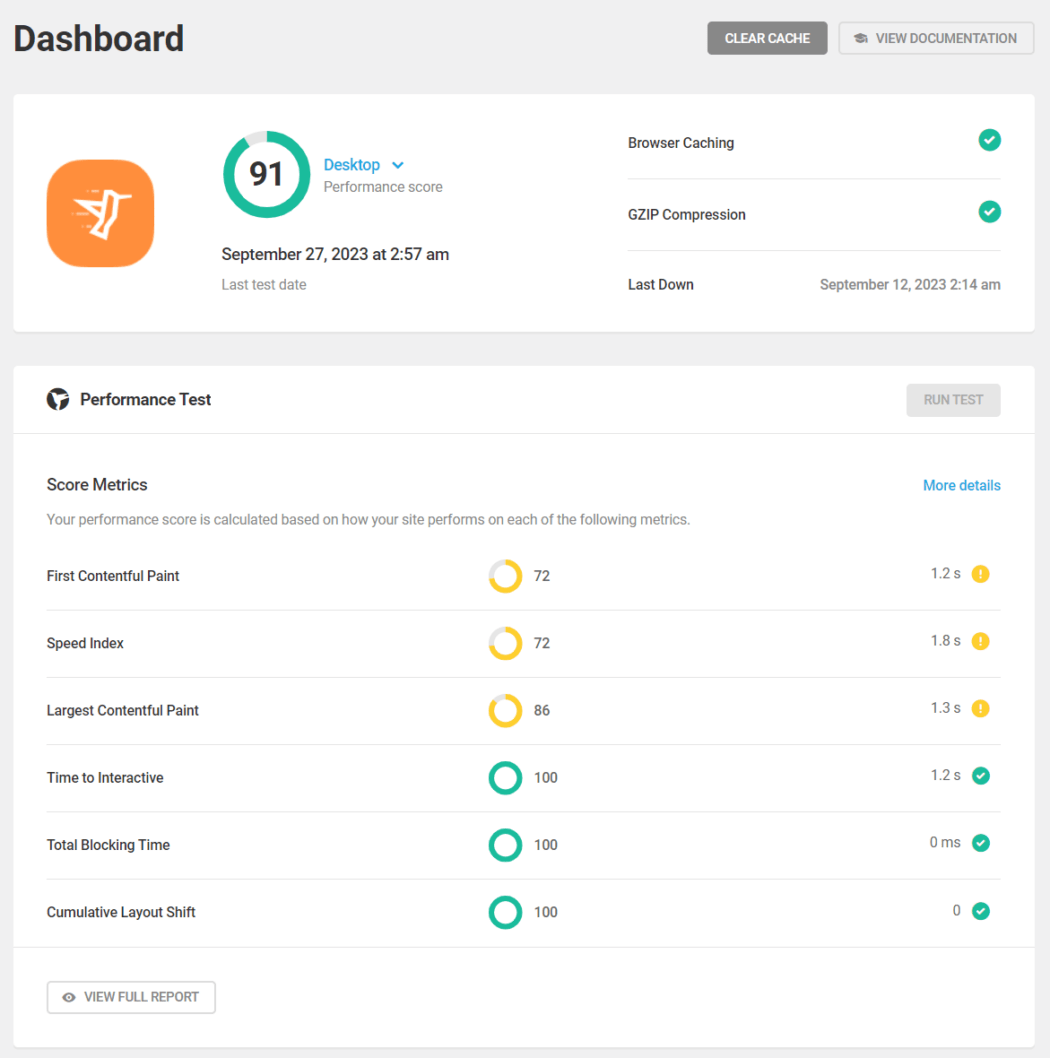
First, start by running a performance test.

Ensure you record the initial findings so that you can contrast them with the outcomes after the changes.

Next, navigate to Hummingbird > Asset Optimization > Extra Optimization and enable Critical CSS.


After enabling the feature, you’ll see different options for loading Critical CSS and for handling Unused CSS.
Loading Critical CSS
This section allows you to choose between Full-Page CSS Optimization (default) or Above-the-Fold CSS Optimization.

We recommend choosing the default Full-Page CSS Optimization with Load on User Interaction option selected for most sites as this will provide the best results and address both issues of eliminating render-blocking resources and reducing unused CSS audits while maintaining the integrity of all the site’s visual elements.
Optimization of Full-Page CSS involves inlining all necessary CSS and postponing or eliminating the loading of the remaining CSS.
Choosing the Above-the-Fold CSS Optimization method is recommended for larger sites with loads of complex CSS if the default option does not give the desirable results. This method will inline all above-the-fold CSS and load the rest asynchronously.
Handling Unused CSS
Hummingbird gives you the option to load the unused CSS On User Interaction to fix any rendering issues or Remove Unused which trims unused CSS, keeping only what’s necessary and loading it inline.
Additionally, you can toggle the feature for specific post types.

While the post type toggles are available for both the Full-Page CSS Optimization and Above-the-Fold CSS Optimization methods, only the Full-Page CSS method handles unused CSS.

Both optimization methods also provide an advanced option to add custom CSS manually within the <head> section of the page(s).

If you previously utilized the above-the-fold CSS feature in older versions of Hummingbird to input critical path CSS manually, the existing information will be automatically transferred to the Manual Inclusions box when you update the plugin to the most recent version and start using the new feature.
After configuring your options, click Save Changes. Hummingbird will start implementing Critical CSS automatically as per your settings.
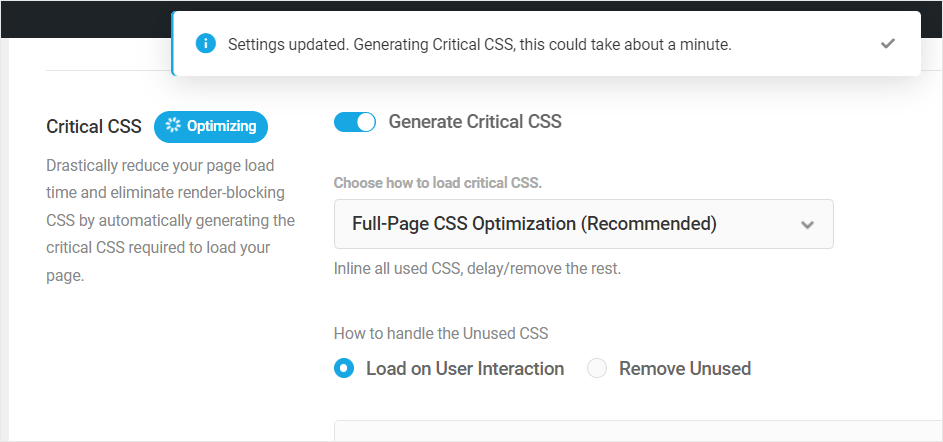
Once the completion message appears, go to your website and verify that all elements on the front end are being displayed correctly.

Refresh the page, let the cache build up again, and then run another performance test in Hummingbird so you can compare the before and after results.
Regenerate Critical CSS
Upon implementing Critical CSS on your website, a button labeled “Regenerate Critical CSS” will appear at the top of the Extra Optimization page.
Click on this button to purge the cache, clear all local or hosted assets, and automatically regenerate all required assets for your site or homepage.

Hummingbird’s Critical CSS is Compatible with Everything WordPress
We have tested Hummingbird’s Critical CSS feature extensively and found it to be compatible with all WordPress versions and themes, page builders, fonts, WooCommerce, Learning Management Systems (LMS), etc.
It’s important to note, however, that installing poorly-coded themes or plugins containing CSS with invalid code or invalid strings on your site could cause issues and result in a Critical CSS error message.

In the event that you encounter errors while utilizing Critical CSS, attempt the following steps:
- Click on the “Regenerate Critical CSS” button and see if this fixes the issue.
- If you get the same error again, we suggest changing the theme (use a staging site if your site is live), and run Critical CSS on the new theme. If there are no problems, then the issue is most likely the theme.
- We suggest checking your plugins for problems if you encounter difficulties following the installation of a new theme.
- If the error still persists after trying all of the above, note the error message, disable Critical CSS temporarily on your site, and contact our support team for assistance fixing the issue.
You can rest assured, however, as Hummingbird’s Critical CSS feature has been designed with the focus to preserve your site’s visual integrity while bumping performance. The feature handles errors well and and will rarely break a site, even in case of errors.
For additional information on using the Critical CSS feature, refer to the plugin documentation.
Activate all of Hummingbird’s optimization capabilities for optimal performance.
If getting maximum speed and performance out of your WordPress site(s) is critically important to you, using Hummingbird’s Critical CSS is definitely a feature you shouldn’t ignore.

To optimize performance and save resources, we suggest implementing Critical CSS alongside page caching and utilizing all the asset optimization capabilities offered by the plugin, such as CDN and Delay JavaScript Execution.

In most cases, combining all of Hummingbird’s optimization features should help your site achieve PageSpeed scores of 90+ or bring it closer to a perfect 100 if your site is already performing well.

As mentioned earlier, Critical CSS is a Hummingbird Pro feature and its available to all WPMU DEV members.
If you are currently using our free Hummingbird plugin, consider becoming a member for affordable and risk-free access to our all-in-one WordPress platform. It has everything you need to launch, run, and grow your web development business.
And if you are an Agency member, you can even white label and resell Hummingbird (plus hosting, domains, our entire suite of PRO plugins, and more) all under your own brand.
Owners of WordPress websites are constantly searching for methods to boost their site’s speed and efficiency. The Hummingbird Critical CSS feature is a recent addition aimed at aiding this by optimizing the delivery of essential CSS.
Essential CSS refers to the CSS needed to display the content at the top of a webpage. This content is what users see upon initially visiting a page, and it’s crucial that it loads swiftly for a positive user experience. The Hummingbird Critical CSS feature enhances WordPress site speeds by pinpointing the essential CSS for each page and embedding it directly into the HTML. This allows for immediate loading of the essential CSS, bypassing the need for an extra HTTP request.
The advantage here is a quicker load time for the top content, greatly affecting the site’s overall speed. Google has indicated that embedding critical CSS can cut down page load times by up to 50%, as it removes the necessity for the browser to download and process a separate CSS file before displaying the top content.
The Hummingbird Critical CSS feature is simple to activate with just a few clicks. Once activated, it will autonomously produce the essential CSS for each page and embed it into the HTML, freeing site owners from the burdensome and intricate task of doing it themselves.
Beyond enhancing site speed, the Hummingbird Critical CSS feature also aids in search engine optimization (SEO). Google has identified site speed as a factor in search rankings, with swifter sites likely to achieve higher rankings and attract more visitors.
In summary, the Hummingbird Critical CSS feature is an invaluable tool for any WordPress website. It not only improves site speed and user experience but also boosts SEO, all key elements for a thriving website. For WordPress site owners aiming to enhance their site’s performance, the Hummingbird Critical CSS feature is certainly worth considering.

Recent Comments