


Unassigned traffic in Google Analytics 4 (GA4) can leave marketers scratching their heads, wondering where these visits are coming from. Here’s why it happens and how you can resolve it to gain clearer insights into your website’s performance.
What is unassigned traffic in GA4?
Unassigned traffic in GA4 refers to website visits that cannot be categorized into any of Google’s predefined default channel groups.
These channel groups are designed to organize traffic sources based on shared traits, like the traffic’s origin or medium. Examples of default channel groups include:
- Affiliates.
- Audio.
- Cross-network.
- Direct.
- Display.
- Email.
- Mobile push notifications.
- Organic search.
- Organic shopping.
- Organic social.
- Organic video.
- Paid other.
- Paid search.
- Paid shopping.
- Paid social.
- Paid video.
- Referral.
- SMS.
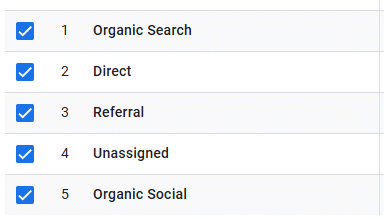
Google uses specific channel rules to group traffic sources with similar characteristics. For instance:
- Traffic sources like google / organic, duckduckgo / organic and bing / organic share the medium “organic” and are grouped under the Organic Search channel.
- Sources like google / cpc and bing / cpc share the “cpc” (cost-per-click) medium, placing them in the Paid Search channel.
These rules allow similar traffic sources to be grouped logically, making it easier for marketers to evaluate performance and understand attribution.
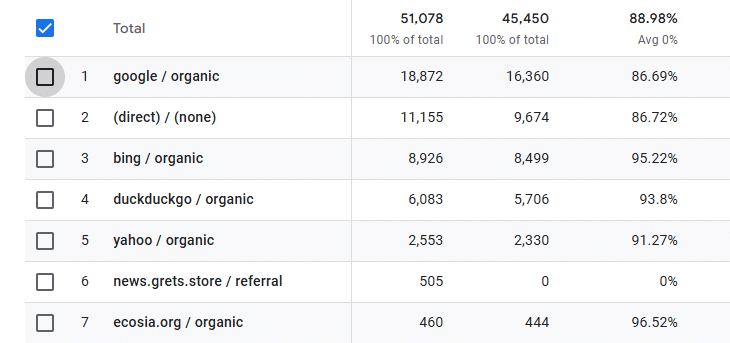
These sources often include:
- User-defined origins.
- Unspecified mediums like (not set).
- Or unique attributions.
As a result, they cannot be categorized into the default channel groups; GA4 labels them as unassigned traffic. To better understand and analyze these traffic sources, we need to create custom channel groupings or manually review the data. However, this relies on understanding your traffic sources, collaborations and a flexible approach to channel group management.
Dig deeper: Channel groups: Getting started with Google Analytics 4
Direct traffic vs. unassigned traffic
A common assumption is that direct traffic and unassigned traffic are the same. While this isn’t the case, sometimes direct traffic can be tracked under unassigned accidentally if and when GA4 cannot successfully categorize the source due to incomplete or missing information.
In GA4, they have a key distinction that means they are tracked separately, but both can be “resolved” using UTM parameters.
Identifying unassigned traffic in GA4
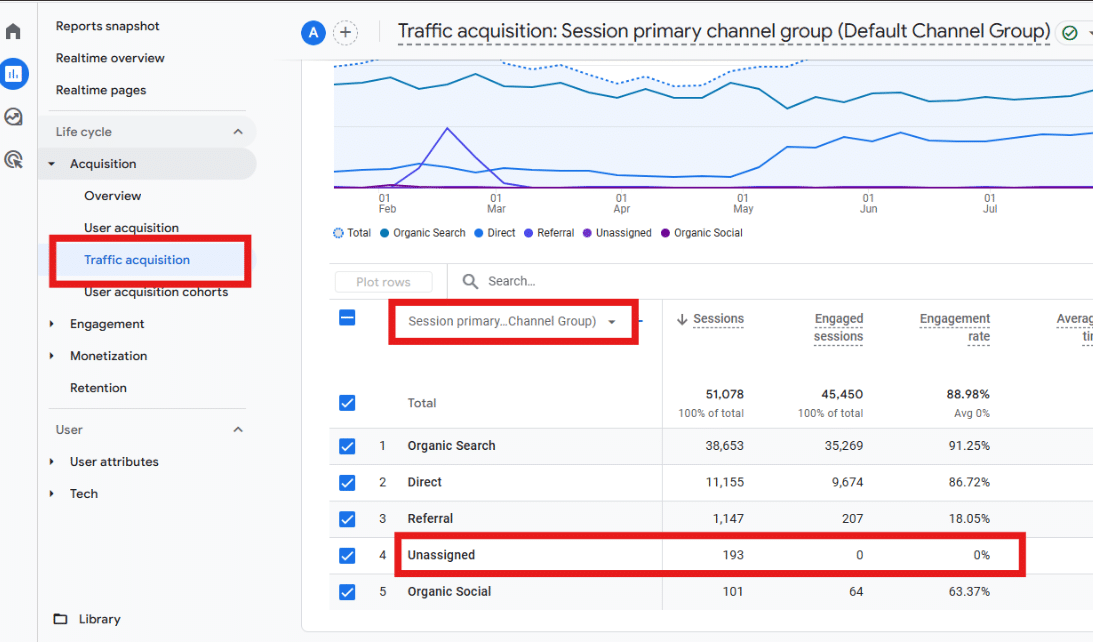
You can find your unassigned traffic reports by navigating to Acquisition > Traffic Acquisition. Set your filter to “Session primary channel group (Default Channel Group).”
Fixing unassigned traffic in GA4
If you’re concerned about unassigned traffic or want to maximize clarity in your data, you can work on reducing it as much as possible. I say “as much as possible,” as it cannot be completely eliminated due to many influencing variables being outside our control.
Ensure proper tag coverage
When web pages lack proper tagging, such as missing GA4 tracking code or incorrect implementation, GA4 cannot accurately attribute traffic sources.
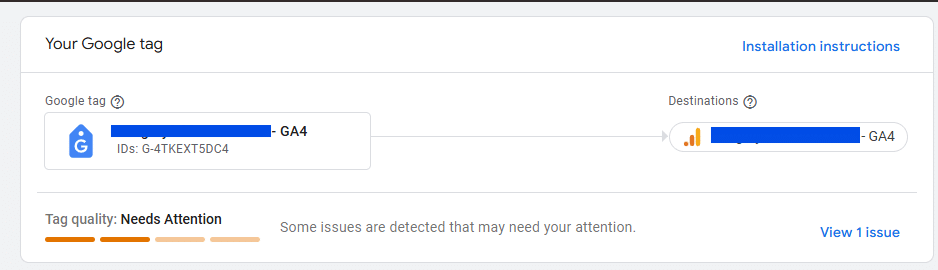
If you see a “Container quality: Needs Attention” notification in Google Tag Manager (GTM), follow these steps:
- Click the ‘View 1 issue’ link (or similar) to open the Container diagnostic window.
- Review the message about untagged pages and click ‘See untagged pages’ for a detailed list.
- Use the Tag Coverage Summary report, which includes tabs like:
- Included pages.
- Not tagged.
- No recent activity.
- Tagged.
The tag coverage summary report has some limitations. As such, you need to audit your tag coverage with a third-party tool, such as a web scraper or crawling tool, to identify the tracking code on the page.
The report is also prone to false positives and false negatives, and it can suggest tagging for irrelevant pages.
Address slow-firing tags
You should aim to have your GA4 configuration tag fire as soon as possible on each page load. The best practice is to have it fire immediately after the page has fully loaded and before any other event tags.
How to achieve this will differ depending on your stack and how many tags you have, but generally, you should aim to:
- Improve overall page load speed, especially on mobile devices.
- If implemented via GTM, place the GA4 tag or GTM container tag higher in the
<head>section. - Set the GA4 configuration tag to trigger on All Pages and fire before other GA4 event tags.
- If implemented via GTM, reduce the GTM container size by removing unnecessary tags, triggers and variables. Use built-in variables when possible.
- Consider using server-side tagging to speed up the process further.
Implement UTM parameters
UTM parameters are a great solution to the unassigned problem, especially if your unassigned is incorrectly categorizing traffic from paid social and paid search campaigns.
Before creating any parameters, you need to establish a defined naming convention process for your campaigns. This prevents any mistracking or repeated usage of parameters, which can lead to poor data from which to judge performance.
Developing your UTM naming conventions
Google has clear guidelines on how it classifies and creates its Default channel definitions (which are not editable). UTMs should use:
- Lowercase letters.
- Clear separators like dashes or underscores.
- Descriptive names that identify the source, medium, campaign, term and content.
You’re applying these UTMs to gain visibility on this traffic in the GA4 dashboard and to be able to report on it later. Make sure your team adheres to this structure for reliable data analysis.
- Consistency: Maintain uniformity in naming conventions across all campaigns, using lowercase letters and the same separators to prevent discrepancies in analytics.
- Descriptive values: Clearly indicate the traffic source (e.g., “facebook”, “newsletter”) and campaign details (e.g., “summer-sale”, “product-launch”) in the UTM parameters.
- Distinct parameters: Assign specific values for “source,” “medium,” “campaign,” “term,” and “content” to segment data accurately in GA4.
Dig deeper: 5 GA4 issues and why they’re a good thing
Should I worry about unassigned traffic?
Unassigned traffic can cause concern, prompting questions from non-marketing and senior stakeholders about what it is and how to “resolve” it. As I’ve already mentioned, it’s not entirely possible to eliminate it completely.
The first step is to understand whether you should be concerned about the level of unassigned traffic you have.
I’ve reached out to fellow SEO professionals on Slack groups to find out what percentage of traffic they’re seeing on key Google Analytics accounts for websites with substantial traffic over the past 90 days.
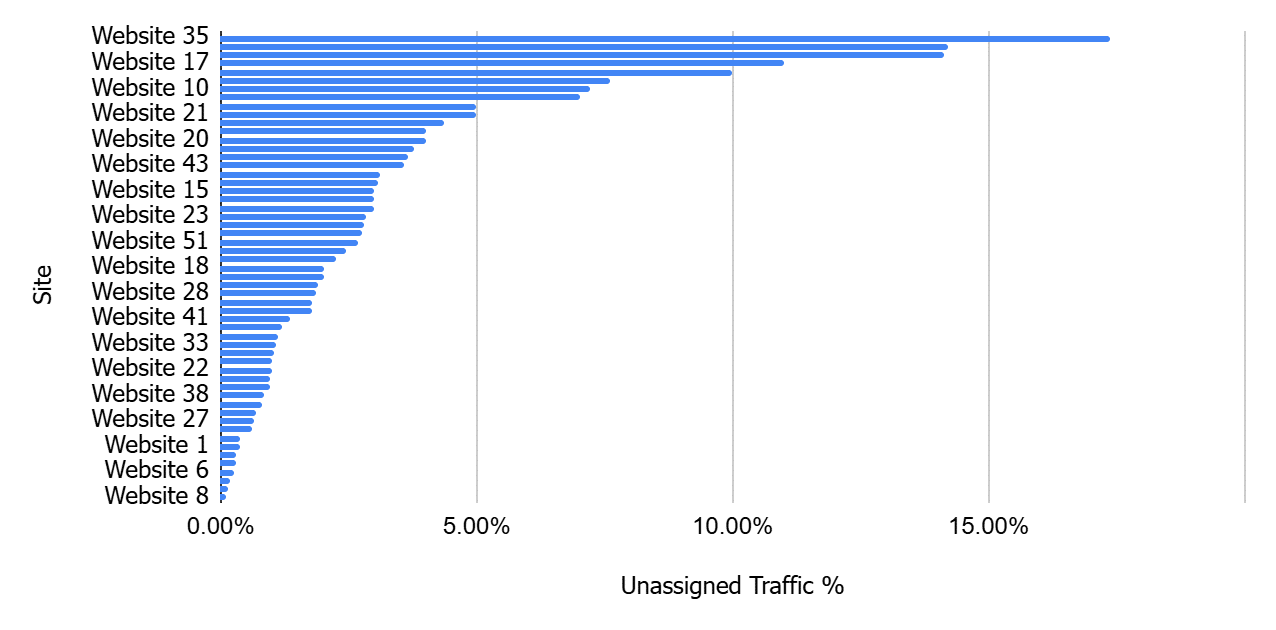
From the 55 websites analyzed, the average percentage of unassigned traffic was 4.08%, with the high being 17.37% and the low being 0.38%.
Unassigned traffic becomes a concern when it accounts for a significant portion of your overall traffic. This is relative to how much traffic you receive and your overall digital user acquisition activities. From my experience, it should raise a flag on enterprise websites if unassigned traffic:
- Ranks among the top 5 default channel groups in terms of sessions.
- Is more than 20% of your total website traffic.
The post How to resolve unassigned traffic in GA4 appeared first on MarTech.
# Resolving Unassigned Traffic in Google Analytics 4 (GA4)
Google Analytics 4 (GA4) is a powerful tool for tracking user interactions and understanding website performance. However, one common issue that marketers and analysts encounter is **unassigned traffic** in GA4 reports. This can make it difficult to attribute traffic sources correctly and gain meaningful insights.
In this article, we’ll explore what unassigned traffic is, why it occurs, and how to resolve it effectively.
—
## **What is Unassigned Traffic in GA4?**
Unassigned traffic in GA4 refers to sessions or events that do not have a clearly attributed traffic source. When analyzing reports in GA4, you may notice that some traffic falls under the **”(not set)”** or **”Unassigned”** category in the **Traffic Acquisition** or **User Acquisition** reports.
This means GA4 was unable to determine the source, medium, or campaign that led the user to your website or app.
—
## **Why Does Unassigned Traffic Occur?**
There are several reasons why GA4 may classify traffic as unassigned:
### **1. Missing UTM Parameters in Campaign URLs**
If UTM parameters (such as `utm_source`, `utm_medium`, and `utm_campaign`) are not properly added to marketing links, GA4 may fail to attribute the traffic correctly.
### **2. Improper Referral Exclusions**
GA4 automatically excludes self-referrals (traffic from your own domain), but if referral exclusions are not set up correctly, traffic may appear as unassigned.
### **3. Direct Traffic Without a Previous Source**
When users visit your site by typing the URL directly into the browser or using a bookmark, GA4 may classify this traffic as **direct**. However, if GA4 cannot associate it with a previous session, it may be marked as unassigned.
### **4. Issues with Cross-Domain Tracking**
If your website spans multiple domains and cross-domain tracking is not properly configured, GA4 may lose the original traffic source when users navigate between domains.
### **5. JavaScript or Tagging Errors**
If GA4 tracking scripts are not firing correctly due to JavaScript errors, ad blockers, or incorrect implementation in Google Tag Manager (GTM), traffic may not be attributed properly.
### **6. Server-Side Tracking Issues**
If you are using server-side tagging and there are misconfigurations in how GA4 processes traffic data, some sessions may appear as unassigned.
—
## **How to Resolve Unassigned Traffic in GA4**
To minimize unassigned traffic and improve attribution accuracy, follow these best practices:
### **1. Ensure Proper Use of UTM Parameters**
– Always use UTM parameters for marketing campaigns, including email, social media, and paid ads.
– Use a consistent naming convention for UTM parameters.
– Use Google’s [Campaign URL Builder](https://ga-dev-tools.google/ga4/campaign-url-builder/) to generate properly formatted URLs.
### **2. Configure Referral Exclusions Correctly**
– In GA4, go to **Admin > Data Streams > Configure Tag Settings > Show More Settings > List Unwanted Referrals**.
– Add your own domain and any third-party payment gateways (e.g., PayPal, Stripe) to prevent referral misattribution.
### **3. Improve Cross-Domain Tracking**
– If your website spans multiple domains, set up cross-domain tracking in GA4.
– In **Admin > Data Streams > Configure Tag Settings > Show More Settings > Configure Domains**, add all relevant domains to ensure GA4 tracks users across them.
### **4. Fix Google Tag Manager (GTM) and GA4 Configuration**
– Verify that GA4 tags are correctly implemented in GTM.
– Use **Google Tag Assistant** or **GA DebugView** to check if events and pageviews are firing correctly.
– Ensure that GA4 tags are set to fire on all relevant pages.
### **5. Address Server-Side Tracking Issues**
– If using server-side tagging, ensure that traffic source data is passed correctly from the client-side to the server-side.
– Check server logs and debug settings to identify any missing parameters.
### **6. Monitor and Analyze Direct Traffic**
– If you see a high percentage of direct traffic, investigate whether users are landing on deep pages (which is uncommon for direct visits).
– Use **Landing Page Reports** in GA4 to determine if direct traffic is actually misattributed traffic.
—
## **How to Check for Unassigned Traffic in GA4**
To analyze unassigned traffic in GA4:
1. **Go to Reports > Acquisition > Traffic Acquisition.**
2. **Look for the “Unassigned” category** under the **Session Default Channel Grouping** column.
3. **Drill down into the data** to identify patterns, such as specific landing pages or traffic sources that might be causing the issue.
—
## **Conclusion**
Unassigned

Recent Comments